


Core Data on iOS 5 Tutorial: How To Preload and Import Existing Data
Note from Ray: iOS Tutorial Team member Adam Burkepile has kindly updated the Core Data series to iOS 5 – I’ll post an announcement about it in a bit. This tutorial was completely rewritten in order to show a more elegant way of preloading data by making a Mac command line app that reuses your […] By .
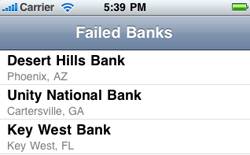
Failed Banks Preloaded Data with Core Data
Note from Ray: iOS Tutorial Team member Adam Burkepile has kindly updated the Core Data series to iOS 5 – I’ll post an announcement about it in a bit.
This tutorial was completely rewritten in order to show a more elegant way of preloading data by making a Mac command line app that reuses your iPhone app’s Core Data model.
I wanted to repost this specially so everyone is aware of the update/rewrite. Enjoy! :]
This is a blog post by iOS Tutorial Team member Adam Burkepile, a full-time Software Consultant and independent iOS developer. Check out his latest app Pocket No Agenda, or follow him on Twitter.
This is the second part of a three-part series to help get you up to speed with the basics of Core Data quickly.
In the first part of the series, we created a visual data model for our objects, ran a quick and dirty test to make sure it works, and hooked it up to a table view so we could see a list of our objects.
In this part of the series, we’re going to discuss how to import or preload existing data into Core Data so that we have some good default data when our app starts up.
Note that there was an earlier version of this tutorial that showed you a hackish way to preload data by directly manipulating the SQLite database. The method shown in this tutorial is much preferred as it’s more elegant and less likely to break as things change with Core Data in the future.
In the final part of the series, we’re going to discuss how we can optimize our app by using NSFetchedResultsController, to reduce memory overhead and improve response time.
Before we begin, make sure you have the project where we left it off in part 1. If you need a fresh copy, you can download it here.
Preloading / Importing Existing Data
So how do we preload data into a Core Data store, anyway? Well, there are two popular solutions to this problem:
- Fill in Core Data on startup from external source. For this the app can start up, notice that the database hasn’t been imported yet, and start reading in data from an external source (such as an SQLite database or XML file) and then start inserting the data into Core Data.
- Provide pre-filled in SQLite database. For this we’ll let Core Data create the database structure for us based on the model, and then we populate the database with a utility app. The utility app could be a Mac or iPhone app that uses Core Data to populate the database via Core Data APIs, or some kind of program that fills in the SQLite database directly. Once the database is populated, just include it with the app and make the app use it as the default database if no database already exists.
In this tutorial we are going to go with option #2, and show you how you can make a simple utility app to create a preloaded Core Data database you can use in your app.
Getting Started
The basis for the method we are going to use is that Core Data on iOS is the same Core Data on OS X, and they can both use the same models and classes.
This means we can write a simple console application on OS X to import data from a data source, stick it into a Core Data data store, and move that data store over to our iOS project. Isn’t that great?!
Let’s try this out and make a Mac command line app to preload our data. Open up Xcode and create a new project, and choose the Mac OSX\Application\Command Line Tool template.

Enter “CoreDataTutorial2” as the name fo the project, change the type to “Core Data” and make sure “Use Automatic Reference Counting” is on.

Finish creating the project, then select “CoreDataTutorial2.xcdatamodeld” and delete it. Select “Move to Trash” when it asks.

Next go into the directory for tutorial 1 and find the following files:
- FailedBankCD.xcdatamodeld
- FailedBankInfo.h
- FailedBankInfo.m
- FailedBankDetails.h
- FailedBankDetails.m
Copy those files into the directory for this project and then drag them into Xcode.


Make sure the “Copy items into destination group’s folder (if needed)” is NOT checked but be sure to check the “Add to targets” checkbox for “CoreDataTutorial2”.

Select the main.m. You’ll notice that because we selected this as a Core Data type application, we get the same boilerplate Core Data methods we saw in tutorial 1. What we’re gonna do now is make some changes to use our model classes from the iOS project and generate the Core Data entities.
In the managedObjectModel() method replace
NSString *path = [[[NSProcessInfo processInfo] arguments] objectAtIndex:0];
path = [path stringByDeletingPathExtension];
with
NSString *path = @"FailedBankCD";
This is pointing the application to the FailedBankCD.xdatamodeld we added instead of the CoreDataTutorial2.xdatamodeld we deleted in the beginning.
Compile and run, and verify that you have no errors.
If you built and ran it previously, you will get the model-mismatch error we discussed in tutorial 1. To delete the sqlite db, hold option(alt) and go to the menu and select “Products” and “Clean Build Folder…”.
If you see an error like this:
NSInvalidArgumentException', reason: 'Cannot create an NSPersistentStoreCoordinator
with a nil model'
This is because the code is looking for a ‘momd’ file (the file for a versioned Core Data Model), but if your model isn’t versioned it will be saved as plain old ‘mom’. As this article explains, the quickest fix is to replace the line in managedObjectModel() like so:
NSURL *modelURL = [NSURL fileURLWithPath:[path stringByAppendingPathExtension:@"mom"]];
Now it should compile and run fine (with no output yet).
Importing the Data
Now on to the fun part – preloading our data into a Core Data database!
For our example, we’ll be importing data from a JSON file. In your apps you may want to import data from a different format, but the core idea shown here (using a Mac app to read a file and load it into a Core Data db) will still apply.
Let’s try it out! Right click on the project and select “New File”. Select “Other” category and “Empty”.

Name the file “Banks.json” and make sure to include the file in the “CoreDataTutorial2” target.

Paste the following into the new file:
[{ "name": "Bank1", "city": "City1", "state": "State1", "zip": 11111, "closeDate": "1/1/11" },
 { "name": "Bank2", "city": "City2", "state": "State2", "zip": 22222, "closeDate": "2/2/12" },
 { "name": "Bank3", "city": "City3", "state": "State3", "zip": 33333, "closeDate": "3/3/13" },
 { "name": "Bank4", "city": "City4", "state": "State4", "zip": 44444, "closeDate": "4/4/14" } ]
This is a JSON encoded string containing 4 dictionaries in an array. Each dictionary has a couple properties that correspond to the properties we have in our FailedBankInfo/FailedBankDetails objects.
If you’re a little rusty on how JSON works, check out this tutorial.
Next, we need to tell the application to copy this file into the products dictory when it builds. Select the project file, then the “CoreDataTutorial2” target. Select the “Build Phases” tab, click “Add Build Phase”, and select “Add Copy Files”. Change the destintion to “Products Directory”. Lastly, drag the “Banks.json” file into the “Add files” section.

At this point we have an application that starts up, initializes a Core Data store using our FailedBank model and classes and has a data source with the Banks.json file. Now we are going to:
- Load the JSON file
- Deserialize the JSON file into an Objective C array
- Loop through the array, creating a managed object for each item
- Save them into Core Data!
Let’s get coding! Open main.m and add the following code to the main function (at the end of the autoreleasepool block):
    NSError* err = nil;
    NSString* dataPath = [[NSBundle mainBundle] pathForResource:@"Banks" ofType:@"json"];
    NSArray* Banks = [NSJSONSerialization JSONObjectWithData:[NSData dataWithContentsOfFile:dataPath]
                                                     options:kNilOptions
                                                       error:&err];
    NSLog(@"Imported Banks: %@", Banks);
So your main function should look like this now:
int main(int argc, const char * argv[])
{

    @autoreleasepool {
        // Create the managed object context
        NSManagedObjectContext *context = managedObjectContext();

        // Custom code here...
        // Save the managed object context
        NSError *error = nil;
        if (![context save:&error]) {
            NSLog(@"Error while saving %@", ([error localizedDescription] != nil) ? [error localizedDescription] : @"Unknown Error");
            exit(1);
        }

        NSError* err = nil;
        NSString* dataPath = [[NSBundle mainBundle] pathForResource:@"Banks" ofType:@"json"];
        NSArray* Banks = [NSJSONSerialization JSONObjectWithData:[NSData dataWithContentsOfFile:dataPath]
                                                         options:kNilOptions
                                                           error:&err];
        NSLog(@"Imported Banks: %@", Banks);

    }
    return 0;
}
This uses the new built-in NSJSONSerialization API to easily convert a JSON document into core Foundation types like NSArray, NSDictionary, etc. To learn more, check out this tutorial.
Give the application a run. You should see this print out:
2012-04-14 22:01:34.995 CoreDataTutorial2[18388:403] Imported Banks: (
        {
        city = City1;
        closeDate = "1/1/11";
        name = Bank1;
        state = State1;
        zip = 11111;
    },
        {
        city = City2;
        closeDate = "2/2/12";
        name = Bank2;
        state = State2;
        zip = 22222;
    },
        {
        city = City3;
        closeDate = "3/3/13";
        name = Bank3;
        state = State3;
        zip = 33333;
    },
        {
        city = City4;
        closeDate = "4/4/14";
        name = Bank4;
        state = State4;
        zip = 44444;
    }
)
So we can see we now have the data in Objective-C objects that we can easily manipulate. Now we can easily import these objects into CoreData just like we did at the end of tutorial 1.
First, add some imports you need to the top of the file:
#import "FailedBankInfo.h"
#import "FailedBankDetails.h"
Then add the following below the code you just added earlier in main:
[Banks enumerateObjectsUsingBlock:^(id obj, NSUInteger idx, BOOL *stop) {
    FailedBankInfo *failedBankInfo = [NSEntityDescription
                                      insertNewObjectForEntityForName:@"FailedBankInfo"
                                      inManagedObjectContext:context];
    failedBankInfo.name = [obj objectForKey:@"name"];
    failedBankInfo.city = [obj objectForKey:@"city"];
    failedBankInfo.state = [obj objectForKey:@"state"];
    FailedBankDetails *failedBankDetails = [NSEntityDescription
                                            insertNewObjectForEntityForName:@"FailedBankDetails"
                                            inManagedObjectContext:context];
    failedBankDetails.closeDate = [NSDate dateWithString:[obj objectForKey:@"closeDate"]];
    failedBankDetails.updateDate = [NSDate date];
    failedBankDetails.zip = [obj objectForKey:@"zip"];
    failedBankDetails.info = failedBankInfo;
    failedBankInfo.details = failedBankDetails;
    NSError *error;
    if (![context save:&error]) {
        NSLog(@"Whoops, couldn't save: %@", [error localizedDescription]);
    }
}];

// Test listing all FailedBankInfos from the store
NSFetchRequest *fetchRequest = [[NSFetchRequest alloc] init];
NSEntityDescription *entity = [NSEntityDescription entityForName:@"FailedBankInfo"
                                          inManagedObjectContext:context];
[fetchRequest setEntity:entity];
NSArray *fetchedObjects = [context executeFetchRequest:fetchRequest error:&error];
for (FailedBankInfo *info in fetchedObjects) {
    NSLog(@"Name: %@", info.name);
    FailedBankDetails *details = info.details;
    NSLog(@"Zip: %@", details.zip);
}
This is essentially the same code we used in tutorial 1 except for the fact we are using the enumerateObjectsUsingBlock: method to loop through the array of banks and insert one bank and save the context. Then we issue a fetch request and list all the banks.
Give it a run. It should now output the array you saw earier along with this:
2012-04-14 22:15:44.149 CoreDataTutorial2[18484:403] Name: Bank1
2012-04-14 22:15:44.150 CoreDataTutorial2[18484:403] Zip: 11111
2012-04-14 22:15:44.150 CoreDataTutorial2[18484:403] Name: Bank2
2012-04-14 22:15:44.151 CoreDataTutorial2[18484:403] Zip: 22222
2012-04-14 22:15:44.152 CoreDataTutorial2[18484:403] Name: Bank3
2012-04-14 22:15:44.152 CoreDataTutorial2[18484:403] Zip: 33333
2012-04-14 22:15:44.153 CoreDataTutorial2[18484:403] Name: Bank4
2012-04-14 22:15:44.153 CoreDataTutorial2[18484:403] Zip: 44444
Ta-da! That’s your data in Core Data. The exciting part is you can totally customize the way that data comes in. Instead of the small static json file we used, you could use a much larger/a couple json files, a xml file, export a spreadsheet file as a csv file and use that, or even pipe in web service! The possibilities really are endless.