
Box2D is a powerful physics library that comes with the Cocos2D game programming library for the iPhone. There’s a lot you can do with it, and a great way to start learning about how it works is to create a simple game with it!
In this tutorial, we are going to create a simple Breakout game step by step, complete with collision detection, a ball bouncing with physics effects, dragging the paddle via touches, and win/lose screens.
If you are new to Cocos2D or Box2D, it may help to go through the intro to Cocos2D tutorial and/or intro to Box2D tutorial before proceeding with this tutorial.
Allright, time for some Breakout!
An Ever-Bouncing Ball
Start by creating a new project with the cocos2d-0.99.1 Box2d Application template, and name your project “Box2DBreakout”. Clear out the template code and so you have an empty project to start with – see the intro to Box2D tutorial for instructions on how to do that.
Once you have a nice clean project, add the following import to the top of HelloWorldScene.h:
#import "Box2D.h" |
And add the following member variables to the HelloWorld class:
b2World *_world; b2Body *_groundBody; b2Fixture *_bottomFixture; b2Fixture *_ballFixture; |
Then add the following to the top of HelloWorldScene.mm:
#define PTM_RATIO 32 |
This is the same ratio to convert from pixels to “meters” that we discussed in our previous Box2D tutorial.
Then add the following code to your init method:
CGSize winSize = [CCDirector sharedDirector].winSize; // Create a world b2Vec2 gravity = b2Vec2(0.0f, 0.0f); bool doSleep = true; _world = new b2World(gravity, doSleep); // Create edges around the entire screen b2BodyDef groundBodyDef; groundBodyDef.position.Set(0,0); _groundBody = _world->CreateBody(&groundBodyDef); b2PolygonShape groundBox; b2FixtureDef groundBoxDef; groundBoxDef.shape = &groundBox; groundBox.SetAsEdge(b2Vec2(0,0), b2Vec2(winSize.width/PTM_RATIO, 0)); _bottomFixture = _groundBody->CreateFixture(&groundBoxDef); groundBox.SetAsEdge(b2Vec2(0,0), b2Vec2(0, winSize.height/PTM_RATIO)); _groundBody->CreateFixture(&groundBoxDef); groundBox.SetAsEdge(b2Vec2(0, winSize.height/PTM_RATIO), b2Vec2(winSize.width/PTM_RATIO, winSize.height/PTM_RATIO)); _groundBody->CreateFixture(&groundBoxDef); groundBox.SetAsEdge(b2Vec2(winSize.width/PTM_RATIO, winSize.height/PTM_RATIO), b2Vec2(winSize.width/PTM_RATIO, 0)); _groundBody->CreateFixture(&groundBoxDef); |
Again, this is the same code that we had in our previous Box2D tutorial to create a bounding box around the screen. However, this time we set the gravity to zero, because in our breakout game there will not be any gravity! Also note we store a pointer to the bottom fixture for future reference (we’ll need it to keep track of when the ball hits the bottom of the screen).
Now download a copy of the image of a bouncy ball I created and drag it into the Resources folder of your project, making sure “Copy items into destination group’s folder (if needed)” is checked.
Let’s add a sprite for the ball into the scene. Add the following right after the last bit of code you added:
// Create sprite and add it to the layer CCSprite *ball = [CCSprite spriteWithFile:@"Ball.png" rect:CGRectMake(0, 0, 52, 52)]; ball.position = ccp(100, 100); ball.tag = 1; [self addChild:ball]; |
There should be no surprises here, we’ve been doing this for a while now. Note that we set a tag on the ball for identification purposes (you’ll see why later in the tutorial).
Next let’s create a body for the shape:
// Create ball body b2BodyDef ballBodyDef; ballBodyDef.type = b2_dynamicBody; ballBodyDef.position.Set(100/PTM_RATIO, 100/PTM_RATIO); ballBodyDef.userData = ball; b2Body * ballBody = _world->CreateBody(&ballBodyDef); // Create circle shape b2CircleShape circle; circle.m_radius = 26.0/PTM_RATIO; // Create shape definition and add to body b2FixtureDef ballShapeDef; ballShapeDef.shape = &circle; ballShapeDef.density = 1.0f; ballShapeDef.friction = 0.f; ballShapeDef.restitution = 1.0f; _ballFixture = ballBody->CreateFixture(&ballShapeDef); |
This should look familiar as well from our last tutorial. As a refresher, to create a body we need to create a body definition, then a body object, then a shape, then a fixture definition, and finally a fixture object.
Note that we set the parameters a bit differently this time: we’ve set the restitution to 1.0, meaning the when the ball collides with an object the collision will be perfectly elastic. In plain English, this means that the ball will bounce back with equal force to the impact.
Also note that we store the ball fixture for future reference (same reason as why we stored the bottom fixture).
Update: Also note that the ball is set to have no friction. Thanks to Steve Oldmeadow for pointing out that this is important in this case so that the ball bounces nicely off the walls, preventing the ball from frequently getting stuck bouncing back and forth in a straight up-down or left-right angle.
Ok, now for something completely different. Add the following after the above:
b2Vec2 force = b2Vec2(10, 10); ballBody->ApplyLinearImpulse(force, ballBodyDef.position); |
This applies an impulse (you can think of it like a propulsion from a jet pack thruster) to the ball to get it to start moving in a particular direction (in this case, diagonally up to the right). We need this to get the ball moving in the first place!
One last thing for the init method: add the tick scheduling:
[self schedule:@selector(tick:)]; |
And then the tick method itself!
- (void)tick:(ccTime) dt { _world->Step(dt, 10, 10); for(b2Body *b = _world->GetBodyList(); b; b=b->GetNext()) { if (b->GetUserData() != NULL) { CCSprite *sprite = (CCSprite *)b->GetUserData(); sprite.position = ccp(b->GetPosition().x * PTM_RATIO, b->GetPosition().y * PTM_RATIO); sprite.rotation = -1 * CC_RADIANS_TO_DEGREES(b->GetAngle()); } } } |
Again no surprises with these two since we did the same thing in the last tutorial.
One last thing and then we’re ready to try it out: the cleanup method!
- (void)dealloc { delete _world; _groundBody = NULL; [super dealloc]; } |
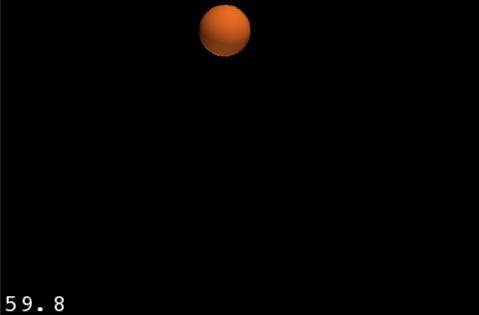
Ok, let’s try it out! When you compile and run the project, you should see a ball continuously bouncing around the screen – cool!
Adding the Paddle
It wouldn’t be a breakout game if we didn’t have a paddle. Download a copy of a graphic of a paddle I made and drag it to the Resources folder of your project, making sure “Copy items into destination group’s folder (if needed)” is checked.
Then add the following member variable to HelloWorld in HelloWorldScene.h:
b2Body *_paddleBody; b2Fixture *_paddleFixture; |
And then construct the paddle body in your init method:
// Create paddle and add it to the layer CCSprite *paddle = [CCSprite spriteWithFile:@"Paddle.png"]; paddle.position = ccp(winSize.width/2, 50); [self addChild:paddle]; // Create paddle body b2BodyDef paddleBodyDef; paddleBodyDef.type = b2_dynamicBody; paddleBodyDef.position.Set(winSize.width/2/PTM_RATIO, 50/PTM_RATIO); paddleBodyDef.userData = paddle; _paddleBody = _world->CreateBody(&paddleBodyDef); // Create paddle shape b2PolygonShape paddleShape; paddleShape.SetAsBox(paddle.contentSize.width/PTM_RATIO/2, paddle.contentSize.height/PTM_RATIO/2); // Create shape definition and add to body b2FixtureDef paddleShapeDef; paddleShapeDef.shape = &paddleShape; paddleShapeDef.density = 10.0f; paddleShapeDef.friction = 0.4f; paddleShapeDef.restitution = 0.1f; _paddleFixture = _paddleBody->CreateFixture(&paddleShapeDef); |
I’m not going to explain this much because you should be a pro at creating bodies by this point. However, note a few differences this time:
- When you create a CCSprite, you don’t need to specify the size of the sprite if you don’t want to. If you give it the filename, it can automatically determine the size.
- Note that instead of using a circle shape, we use a polygon shape this time. We use a helper method to create the shape in the form of a box.
- Note that there is an alternate SetAsBox method that allows you to specify the position of the shape relative to the body, which comes in handy when constructing complex shapes. However we don’t need to use that here, since we just want the shape centered on the body.
- We make the paddle more dense than the ball, and tweak the other parameters as well.
- We are storing paddleBody and paddleFixture for future reference.
If you compile and run this you’ll see our paddle in the scene, and the ball will bounce off it:
However this isn’t much fun, because we can’t move paddle yet!
Moving The Paddle
So let’s get moving! Moving the paddle is going to require touches, so enable touches in your init method:
self.isTouchEnabled = YES; |
Then add the following member variable to your HelloWorld class in HelloWorldScene.h:
b2MouseJoint *_mouseJoint; |
Now let’s implement the touch methods! Let’s start with ccTouchesBegan:
- (void)ccTouchesBegan:(NSSet *)touches withEvent:(UIEvent *)event { if (_mouseJoint != NULL) return; UITouch *myTouch = [touches anyObject]; CGPoint location = [myTouch locationInView:[myTouch view]]; location = [[CCDirector sharedDirector] convertToGL:location]; b2Vec2 locationWorld = b2Vec2(location.x/PTM_RATIO, location.y/PTM_RATIO); if (_paddleFixture->TestPoint(locationWorld)) { b2MouseJointDef md; md.bodyA = _groundBody; md.bodyB = _paddleBody; md.target = locationWorld; md.collideConnected = true; md.maxForce = 1000.0f * _paddleBody->GetMass(); _mouseJoint = (b2MouseJoint *)_world->CreateJoint(&md); _paddleBody->SetAwake(true); } } |
Wow, a lot of new stuff in here. Let’s discuss it bit by bit.
First, we convert the touch location to our Cocos2D coordinates (convertToGL) and then to our Box2D coordinates (locationWorld).
Then we use a method on our paddle fixture object that we’ve stored away to see if the touch point is within the fixture.
If it is, we create something called a “mouse joint.” In Box2D, a mouse joint is used to make a body move toward a specified point – in this case where the user is tapping.
When you set up a mouse joint, you have to give it two bodies. The first isn’t actually used, but the convention is to use the ground body. The second is the body you want to move – in our case the paddle.
Then you specify where you want the target to move – in our case where the user is tapping.
Then you tell Box2D that when bodyA and bodyB collide, treat it as a collision, rather than ignoring it. This is very important. When I was trying to get this working, I didn’t have this set, so when I was moving the paddle with my mouse it wouldn’t collide with the edges of the screen, and my paddle would fly off screen sometimes! This was very confusing and frustrating until I discovered this simple way to fix it :]
You then specify the max force with which to move the body. If you reduce this amount, the body will react more slowly to your mouse movements (which may be what you want sometimes!). But here we want the paddle to respond rather quickly to movements.
Finally we add the joint to the world, and store away the pointer for future reference. We also set the body to awake. We need to do this because if the body is asleep and we don’t awaken it, it won’t respond to the movements!
Ok, next let’s add the ccTouchesMoved method:
-(void)ccTouchesMoved:(NSSet *)touches withEvent:(UIEvent *)event { if (_mouseJoint == NULL) return; UITouch *myTouch = [touches anyObject]; CGPoint location = [myTouch locationInView:[myTouch view]]; location = [[CCDirector sharedDirector] convertToGL:location]; b2Vec2 locationWorld = b2Vec2(location.x/PTM_RATIO, location.y/PTM_RATIO); _mouseJoint->SetTarget(locationWorld); } |
The beginning of this method is the same as ccTouchesBegan – we get the location of the touch in Box2D coordinates. The only thing we do here is update the target of the mouse joint (i.e. where we want the body to move) to be the current location of the touch.
Let’s wrap up by adding ccTouchesEnded and ccTouchesCancelled:
-(void)ccTouchesCancelled:(NSSet *)touches withEvent:(UIEvent *)event { if (_mouseJoint) { _world->DestroyJoint(_mouseJoint); _mouseJoint = NULL; } } - (void)ccTouchesEnded:(NSSet *)touches withEvent:(UIEvent *)event { if (_mouseJoint) { _world->DestroyJoint(_mouseJoint); _mouseJoint = NULL; } } |
All we do in these methods is destroy the mouse joint because when the touches end, we’re done moving the object.
Give it a compile and run, and you should be able to move the paddle all around the screen to bounce the ball!
Pretty cool… but wait a minute, this isn’t breakout, we shouldn’t be able to move the paddle anywhere we want, we should just be able to move it back and forth!
Restricting Movement of the Paddle
We can easily restrict movement of the paddle by adding another joint into the world called a prismatic joint. This lets us restrict the movement of one body to another along a specified axis.
So we can use this to restrict the movement of the paddle relative to the ground to only be able to move along the x-axis.
Let’s give this a shot in code. Add this to your init method:
// Restrict paddle along the x axis b2PrismaticJointDef jointDef; b2Vec2 worldAxis(1.0f, 0.0f); jointDef.collideConnected = true; jointDef.Initialize(_paddleBody, _groundBody, _paddleBody->GetWorldCenter(), worldAxis); _world->CreateJoint(&jointDef); |
The first thing we do is specify the axis to be a vector along the x axis, but not at all along the y axis. We then specify the ever important collideConnected value so our paddle will correctly bounce against the edge of the screen rather than flying into never-never land.
We then initialize the joint specifying the paddle and the ground body and create the joint!
Give it a compile and run and now you should only be able to move the paddle back and forth instead of anywhere you want:
Finishing Touches
Now, as you’ve been playing around with this so far you may have noticed that sometimes the ball can get super-fast or super slow, depending on how you hit it with the paddle.
Update: The first time I tried to fix this, I tried to adjust the velocity of the ball directly by calling SetLinearVelocity. However, as Steve Oldmeadow also pointed out (thanks Steve!), this is a bad idea as it messes up the collision simulations, and it’s better to indirectly affect the velocity by increasing the linear damping. So that’s what we’ll do!
Add the following code to the tick method, after getting the user data:
if (sprite.tag == 1) { static int maxSpeed = 10; b2Vec2 velocity = b->GetLinearVelocity(); float32 speed = velocity.Length(); if (speed > maxSpeed) { b->SetLinearDamping(0.5); } else if (speed < maxSpeed) { b->SetLinearDamping(0.0); } } |
Here I check the tag of the sprite to see if it’s the tag for the ball object. If it is, I check the velocity and if it’s too too large, I increase the linear damping so it will eventually slow down.
If you compile and run you should see the ball goes back to a normal rate when the speed increases too much.
Gimme The Code!
Here’s the full code for the Cocos2D and Box2D Breakout Game that we’ve developed up to this point. More is coming in the next portion of the series!
What’s Next?
So far, we have a ball that bounces around the screen and a paddle we can move around via touch. In the next tutorial in the series, we pick it up from here and add some bricks that get destroyed when the ball collides into them, and some win/lose logic!
Category: iPhone


great stuff, very well explained tutorials, keep up the good work !
Hi – Great tutorial…Could I ask, when you repeatedly call groundBox.SetAsEdge – are you adding an edge to the polygon, or simply reusing the instance (overwriting) to create another edge and this is then becoming permanent via the fixture?
Regards
i
Thanks Dave and Indy!
Good question Indy. I’m reusing the shape structure each time by overwriting it with new coordinates for the edges. But each time I call CreateFixture passing in the shape structure, it creates a new fixture based on the passed in shape coordinates.
So in the end the ground body has four different fixtures as part of it, one for each edge of the screen.
Hi,
Thanks – so the Shape is a means to an end to create the fixture and is disposable. I had thought perhaps the polygonShape had to be a closed shape (true polygon), and you were adding to edges to get to the closed shape.
But it appears this is not the case, you can use polygonShape to draw arbitrary lines and create fixtures from even disconnected lines in a single body – is this correct? i.e you could use your technique to create a “lander” landscape (remember the old game where you had to land without burning all your fuel…!) – or have a single body with 4 disconnected lines….
Yes you are right the lines don’t necessarily need to be connected! In fact this is what they do in several of the Box2D samples – draw a line for the ground without a complete border.
Try this setting in b2Settings.h to fix your sticky walls problem:
#define b2_velocityThreshold 0.0f
Also, are you sure you want friction?
Hey Steve! Thanks for the tip on the b2_velocityThreshold setting, I wasn’t aware of that setting (or b2Settings.h in general!)
However I’m not sure it helps in this case – since I’ve already bound the minimum velocity of the ball to 6, it will never get as low as the default value of b2_velocityThreshhold (1.0), so changing it even lower will have no effect.
The real thing that bugs me about this sample as-is is having to apply that impulse to keep the ball from bouncing straight left-right or up-down repeatedly – there’s got to be a better way. Any ideas on that?
As for b2_velocityThreshhold, for those of you who haven’t heard of that, when an object hits another object below a certain speed it will “stick” to that object. The default value is 1.0 – and with this setting you can change that.
And as for the friction, I liked that the friction causes the ball to slow down a bit over time and that you can speed it up again with moving the paddle quickly, etc. But yeah it could be taken out too, depending on what you’re going for!
I have read this tutoral in a whole day with my poor English and google translator.It is very fruitful.
谢谢你!
I am waiting for the next part of this tutoral.
@Ray – the ball travelling straight horizontally or vertically along a wall is what I call “sticky walls”. For my game (not breakout) I fixed it by setting the velocity threshold to 0 and eliminating all friction. I can understand you wanting some friction on the bat but check what the friction is for the walls.
When I set the linear velocity directly to govern the maximum velocity I found the problem came back, setting linear velocity directly is not recommended from an accuracy of simulation point of view e.g collisions will mess up. I found it was better to apply some linear dampening when the velocity got too high instead of directly adjusting the linear velocity.
@Steve – Aha, that was it! I played around with it some more and I was able to get it to stop “sticking” by both a) setting friction to 0 on the ball, and b) using linear damping rather than directly setting the velocity, per your suggestions. It appears the b2_velocityThreshold had no impact in this particular case though.
Thanks much for your help! I’ve updated the post and the sample code incorporating your suggestions! :]
Thanks for the tutorial, I’ve been looking for good Box2D tutorials :)
On a little side note, the links at the beginning of the tutorials for the bouncing ball tutorial are broken (they have “…” in the middle of them).
Just thought you’d like to know.
Thanks again
Thanks for the heads up itai! I’ve fixed that.
Ray,
Love these tutorials. Just a quick note on this line:
“Then you tell Box2D that when bodyA and bodyA collide, treat it as a collision, rather than ignoring it.”
Is that supposed to be “when bodyA and bodyB collide” ?
@Greg – whoops you are right, thanks!! Fixed.
Hi,
Silly question, but if you are creating a box for the ground body, why are you able to place things in the box, without Box2D trying to separate them so that one shape is not inside another?
i
Hey indy,
I don’t think Box2D considers the ground box as a true solid box with an “inside” and “outside” – rather since we defined the box as just edges, you can think of the box as 4 very thin rectangles around the borders of the screen. So if something is “inside” the rectangles, it still isn’t colliding with those rectangles.
Thanks..!
thanks so much for these tutorials ! it’s the starting point for my cocos work that I was trying to find for a long time ! thanks, this is so helpful and really appreciated.
I’m new to objc and I have trouble splitting it up in separate classes. Could you please show how to make a AddBlock or AddPaddle class that can be used in the game function ?
@anchovie – Do you mean you want to pull out the code to add the paddle/block into a method so you can more easily add more paddles or blocks?
If so it’s just a matter of a little refactoring. For example, to move the code to add a new block into a separate method, replace the add block for loop with something like this:
CCSprite *block = [CCSprite spriteWithFile:@"Block.png"]; for(int i = 0; i < 4; i++) { static int padding=20; int xOffset = padding+block.contentSize.width/2+((block.contentSize.width+padding)*i); CGPoint position = ccp(xOffset, 250); [self addBlock:position]; }And then write the addBlock method as follows:
- (void)addBlock:(CGPoint)position { static int padding=20; // Create block and add it to the layer CCSprite *block = [CCSprite spriteWithFile:@"Block.png"]; block.position = position; block.tag = 2; [self addChild:block]; // Create block body b2BodyDef blockBodyDef; blockBodyDef.type = b2_dynamicBody; blockBodyDef.position.Set(position.x/PTM_RATIO, position.y/PTM_RATIO); blockBodyDef.userData = block; b2Body *blockBody = _world->CreateBody(&blockBodyDef); // Create block shape b2PolygonShape blockShape; blockShape.SetAsBox(block.contentSize.width/PTM_RATIO/2, block.contentSize.height/PTM_RATIO/2); // Create shape definition and add to body b2FixtureDef blockShapeDef; blockShapeDef.shape = &blockShape; blockShapeDef.density = 10.0; blockShapeDef.friction = 0.0; blockShapeDef.restitution = 0.1f; blockBody->CreateFixture(&blockShapeDef); }hi ray,
Thanks for you help and sorry for mixing up terms here.
I’m trying to create a separate class (AddBlock.h + .mm) to add blocks but I run into problems setting it up and passing on my variables (how to link them all to the same _world to make them react to each other etc).
I have it working for quickly creating sprites but I struggle to generate blocks via box2d by calling a separate class.
btw, awesome new tutorial. You should write a book (:
@anchovie – Ah I see. How are you trying to pass in the world variable? Good ways of passing it in are either adding it as a parameter to the init method for your class, or adding properties to your class that you can set after construction.
If you get stuck, drop me an email and send me what you have so far and I’ll help you work through it.
And thanks, glad you like the tutorials! :]
I have a question,sometime the direction of the ball
will be horizontal for ever,the user can’t controll it
any more,how to detect the phenomenon and how to change the program code to solve it.
I am so sorry to write the qustion in the part of
“Intro to Box2D with Cocos2D Tutorial: Bouncing Balls”.
Thanks
@Mr ma: I’ve had that happen before, I’m not sure if this is the best way to solve it but what I did was detect the angle the ball was moving in by calculating the angle from the velocity, if the angle was too much “horizontal” I would apply an impulse to the ball to get it to move in a different direction.
So something along these lines, inside the tick method:
static int left = 90; static int tolerance = 2; float degrees = abs(CC_RADIANS_TO_DEGREES(atan2f(velocity.x,velocity.y))); if (degrees > left-tolerance && degrees < left+tolerance) { b2Vec2 force = b2Vec2(10, 10); b->ApplyImpulse(force, b->GetPosition()); }thank you Ray!!!
you are good man!!: )
Great! Thank you very much!
I am studying all your Tutorial recently and those
source code are very helpful for me! I regard you as my teacher and good friend.
As you said “The ideas I’ve gotten so far are how to add more difficult monsters, how to set up a main menu and multiple levels, and how to implement a scoreboard system.” I expect your future source code include those content ,and also expect two points: one is how to save the level and data, when user play the game again,he can play it with
recent level or restart game . Two question is how to quit the game normally.
expecting …
Reading through b2Body.h in I think that for a linear impulse, ApplyImpulse has been replaced by ApplyLinearImpulse.
Hey, can I ask what the logic behind the underscores before the variables is? I’m new to all of this and am always interested in the little things.
@Jason – Thanks for the heads up! Updated this tutorial to 0.99.1 as well.
@Peter – Funny you ask that, Jason recently asked something similar in another tutorial and I posted a long-winded response there:
http://www.raywenderlich.com/352/how-to-make-a-simple-iphone-game-with-cocos2d-tutorial
I have been following this tutorial to create a somewhat different game. I am trying to make it so that when the player taps, an new block is created (up to four). I also need to be able to detect touches in each of them as well. You used TestPoint() on the _paddleFixture. I did the same except for the fact that I checked it on 4 different fixtures in ccTouchesBegan. It crashes when I try to spawn the second one in ccTouchesEnded. Any suggestions?
Never mind. I solved the problem myself by just checking to see if the block was not nil, then doing the check. Problem solved!
Thanks for gr8 tutorial. I am trying to run app on Ipad, App is not opening after successful installation.
Compilation works fine without any warning or errors. Any comments??
“Pretty cool… but wait a minute, this isn’t breakout…!”
For some reason, this nearly made me spit out my coffee laughing.
Awesome tutorial, and thanks for the laugh :)
@Kumar – Sorry I make no guarantees for any of these tutorials on the iPad, they’re iPhone only at this point as far as I’m concerned :]
@SC – Lol great! :]
@Ray
Thanks… i could play on after restarting device .. and if i change target to Ipad… Instantly all objects changes changes to Ipad dimension.. thats gr8. It looks gr8 in big screen.
I am currently using 3ds max trail version to create objects and save it as png file. Can i use those objects in my Ipad app and release it as Paid app ??
I am not sure if i have to buy 3ds max which is > $3000 to use in paid app development .
do you know any cheap alternative for creating objects and apply material to the object .
Thanks again ….
@Kumar
Cheetah3D ($150), or Blender is Free. Blender is hard though
Hi Ray,
I’m trying to implement the same thing with a little change.
I want the ball to move in a direction the user provides when he swipes on screen.
e.g, If he swipes towards top-right side I want to move the ball in that direction.
I’m getting the angle and I want to calculate values to add on my x and y co-ords so that I keep moving my ball in that direction.
@Nouman: You can probably get the behavior you’re using with SetLinearImpulse – but to give you a more detailed answer I’d have to play around with that a bit in order to give you an answer and don’t have the time – but if you figure it out please post here so everyone else can benefit! :]
hi ,
Thanks for this wonder full tutorial i am going to make a game like pinball which one would be better box2d or cocos2d app and how can i get an object to move along a specific path (like curve) suppose if i want to move the ball along specific angular or cultivated or curve path how can i achieve this ..
thanks ray you did a wonderful job.
@Umer: For pinball, you’ll probably want to go with Box2D since it will do a nice job handling the physics for you. Haven’t made a pinball game myself, but I’d try applying an initial impulse to the ball to shoot it up, and an impulse to the paddles when the user taps, and then physics should handle most of the rest!
ray have you any idea about “moving body along path ” thanks for your earlier response
@Umer: Here are two links to some discussions to help get you started:
http://groups.google.com/group/cocos2d-iphone-discuss/browse_thread/thread/bbeb8d3531a845f9/4d1c05d20ce32675?lnk=raot&pli=1
http://www.cocos2d-iphone.org/forum/topic/1376
Hey ray thanks for your links which you share with me one point do you know how make an arc shape or curve shape in box2d for iphone….
@umer: I think they are done just by creating many edges one after another in the shape of a curve. Take a look at the “Edge Shapes” example in the Box2dTestBed that comes with Cocos2D for an example.
Thanks Ray :)
Hi Ray;
As usual great stuff! Just one question. Shouldn’t the paddle have some friction. As it is now I can use mouse to slide it, lift up and it will slide back and forth between the walls eventually stopping. seems like it shouldn’t do this?
-jim
@Jim: Thanks! As for the paddle, the paddle shape does have some friction (0.4f), not sure what you mean? Of course you can tweak all of these based on the effect you’re trying to get in your game :]
Hey, Ray… going through your tutorials like butter, such an easy-to-follow structure.
I have a question regarding applying impulse force.
I’d like to add an initial spin force to the ball, how would I do that? I tried adding ApplyAngularImpulse() but it had no affect.
@Pete: I love the butter analogy – and I’m glad you didn’t choose to use a laxative analogy instead! :]
I just tried ApplyAngularImpulse in my project and it seemed to work OK for me:
If you’re still having troubles, check out the updated project.
Yup it works just fine, just my silly mistake.
A laxative analogy would have been inappropriate, but since you brought it up, butter is a laxative too. Hope that helps someone ^^.
@Pete: Lol, I knew it you were thinking it all along!! ;]
hi ,
Render thanks for sharing the knowledge. I want to apply the linear impulse on a body from its current position , some one told me you can’t do this (“You will get some rotation unless you apply the impulse at the center of mass.”) . i just want to know how to do this can you provide me some sample…
Thanks…
Sorry i miss spell your name Ray.
@umer: You can get the center of mass from a fixture by calling GetMassData() on a fixture.
Hey Ray,
Thank you very much for the great tutorials, you literally taught me iphone game programming with cocos2d and box2d. Great work. Okay, Ray, I was looking for a standard game template, I mean a game structure like MVC which you prefer to follow. This will be of great help for us. Is it possible that you provide us with a game template and explain why you want the things to be structured like that.
Regards.
@singlepoint: Thanks! :] And good idea, added to the idea list!
Hey Ray,
Great tutorials! I’m interning at a company right now and we decided to do an iPhone/iPad game as our next project and your tutorials for cocos2d and box2d have been a huge help for getting us started.
To help me learn, I decided to make a pong clone since it is really just an extension of breakout. I have most of it working, I just can’t seem to get the multi-touch to work as I would like it to. I’ve tried to identify the different touches by their address in memory but that doesn’t seem to work too well.
Any clues?
Thanks!
Hahaha, right after I posted this, I realized that I still had the remnants of the breakout tutorial in my code. At the top of my ccTouchesMoved, I still had an if(_leftMouseJoint == NULL) { return; }
In case this is useful to others: you CAN keep track of individual touches based on their address in memory. What I did was, I stored two member variables:
UITouch *_leftTouch;
UITouch *_rightTouch;
In ccTouchesBegan, I looped through all UITouch objects in touches and stored the touch to _leftTouch or _rightTouch depending on which paddle they clicked on. Then, in Moved and Cancelled, I just compare the touch to either _leftTouch or _rightTouch to determine which paddle to move.
Sorry for the blog spam! :)
@Kevin: No prob, glad you got it working! Good luck in your new internship and with your upcoming game! :]
Hi Ray
I’m trying to install this app on my ios4 iphone but it shows me the following error: “Can’t Install application” “Box2DBreakout.app specifies device capability requirements, which are not met by iPhone of Jonathan.
Any idea?
thanks!
@Jonathan: Looks like some other people from the Cocos2D forums have seen this issue as well, here’s a thread that might help:
http://www.cocos2d-iphone.org/forum/topic/4602
Hey Ray great stuff man! All of your tutorials/articles are really clear, helpful and informative.
Thanks a lot!
hi ray,
gr8 tutorial. i m new to game development and also to cocos2D. I need to develop a game like ping pong, where the ball will hit a table and get bounced forward. no idea how to implement it. any help would be great.
Well i have another problem
I have two boxes, and i need to know when top of one box collides with the bottom of another. Any idea how to do that?
I thought about getting the vertex coordinates of boxes, but i don’t know how to do that.
Can you please help me?
very nice tuto as usual. I am currently doing all your Cocos2D and Box2D tuts and I have to say : it’s sweet like sugar !
Thanks Ray
@abhishek: Are you looking to make a 2D version of ping pong or a 3D version? Cocos2D is only for 2D games, and I’m not sure how a ping-pong game would work in 2D.
@andrew: I haven’t really looked into that myself… maybe try the Box2D forums for this one? I’m sure it’s a common problem.
http://www.box2d.org/forum/
@olinsha: Lol thanks for the nice analogy! :]
hello ray
good tutorial
i need to get 2 or more paddles on my screen
they need to be draggable both
and they need collision detection to each other to
i have the collision detection and the physics working
but its still not draggable
is this even possible ?
You can mess around with the dampening and the frequency to alter the control of the mouse joint. Default freq. is 5.0, so 12 will give you a faster moving mouse joint.
m_mouseJoint = (b2MouseJoint*) world->CreateJoint(&md);
m_mouseJoint->SetDampingRatio( 0.0f );
m_mouseJoint->SetFrequency( 12.0f );
@Tim
is that the way you can add multiple b2body’s and make them draggable ?
@nicolai
My approach would be to create a mouseJoint for each object to grab and add them to a mutable array. Then on a mouse move, update each mouseJoint target. On mouse release, destroy each mouseJoint.
@nicolai
Or, if the objects are paddles and they act the same way, you could combine them as fixtures of a compound body, then attach a mousejoint to it.
@Tim
Thanks
@Tim: Thanks so much for helping out Nicolai, you pwn! :]
When setting the self.isTouchEnabled = YES; in the -(id)init{} method, I get the following error:
Request for member ‘isTouchEnabled’ in ‘self’, which is of non-class type ‘HelloWorld’
Any ideas? Just to noye I have created a scene called ‘HelloWorld’
Thanks
Ritchie
I’ve sorted it, sorry for the blog spam.
In my HelloWorld.h file, I set had the following set:
@interface HelloWorld : CCScene{}
I should have used CCLayer and not CCScene
Thanks
Ritchie