
2 September 2010

How To Create A Simple iPhone App Tutorial: Part 3/3

If you're new here, you may want to subscribe to my RSS feed or follow me on Twitter. Thanks for visiting!


Perhaps the Scariest Bug of All!

Perhaps the Scariest Bug of All!

This article is the final part of a 3 part series on how to create a simple iPhone app for beginners. And this app happens to be about rating scary bugs!

In the first part of the series, we created an app that contained a list of bugs in a table view.

In the second part of the series, we covered how to create a detail view for the bugs.

In this article, we’ll cover how to add new bugs, how to add an icon and default image to our project, and how to handle long-running operations.

So let’s wrap this app up!

Adding and Deleting Bugs

Everything’s working great so far, but so far this isn’t a very user-friendly app! I mean the first thing anyone would want to do is add their own bug, and so far the only way to do that is by editing code!

Luckily, since we wrote our EditBugViewController and are using a UITableViewController for the RootViewController, most of the infrastructure is already in place! There are just three changes we have to make to RootViewController.m, but I’m going to explain them bit-by-bit to keep things easy to understand:

1) Set up navigation bar buttons

// Inside viewDidLoad
self.navigationItem.leftBarButtonItem = self.editButtonItem;
self.navigationItem.rightBarButtonItem = [[[UIBarButtonItem alloc] 
    initWithBarButtonSystemItem:UIBarButtonSystemItemAdd 
    target:self action:@selector(addTapped:)] autorelease];

First, in viewDidLoad, we set up some buttons in the navigation bar. Just like “title” is a special property in view controllers used by the navigation controller, “navigationItem” is another of those. Whatever you set for the leftBarButtonItem and the rightBarButtonItem will show up in the navigation bar when the navigation controller shows your view controller.

For the leftBarButtonItem, we use a special built-in button called “editButtonItem.” This button says “Edit” and toggles the UITableView between edit mode (where you can delete rows for example) and normal mode.

For the rightBarButtonItem, we create a button that the user can tap to create a new bug entry. It turns out there’s already a built-in system item for adding (that looks like a + symbol), so we go ahead and use that, and register the “addTapped:” method to be called when it’s tapped.

2) Implement tableView:commitEditingStyle:forRowAtIndexPath

// Uncomment tableView:commitEditingStyle:forRowAtIndexPath and replace the contents with the following:
if (editingStyle == UITableViewCellEditingStyleDelete) {        
    [_bugs removeObjectAtIndex:indexPath.row];
    [tableView deleteRowsAtIndexPaths:[NSArray arrayWithObject:indexPath] withRowAnimation:UITableViewRowAnimationFade];
}

This method is called when the user chooses to modify a row in some way. We check to see that the user is trying to delete the row, and if so we delete it. Note we have to remove it both from our data model (_bugs) AND notify the table view that one of the rows has been deleted, via deleteRowsAtIndexPaths.

3) Handle adding a new bug

// Add new method
- (void)addTapped:(id)sender {
    ScaryBugDoc *newDoc = [[[ScaryBugDoc alloc] initWithTitle:@"New Bug" rating:0 thumbImage:nil fullImage:nil] autorelease];
    [_bugs addObject:newDoc];
 
    NSIndexPath *indexPath = [NSIndexPath indexPathForRow:_bugs.count-1 inSection:0];
    NSArray *indexPaths = [NSArray arrayWithObject:indexPath];    
    [self.tableView insertRowsAtIndexPaths:indexPaths withRowAnimation:YES];
 
    [self.tableView selectRowAtIndexPath:indexPath animated:YES scrollPosition:UITableViewScrollPositionMiddle];
    [self tableView:self.tableView didSelectRowAtIndexPath:indexPath];
}

When the user taps the add button, we create a ScaryBugDoc with some default values, and add it to the bugs array. Note we have to also update the table view so it knows there’s a new row.

Then we call some code to make the table view act as-if the user selected the new row, so we immediately go into the edit view for the new bug.

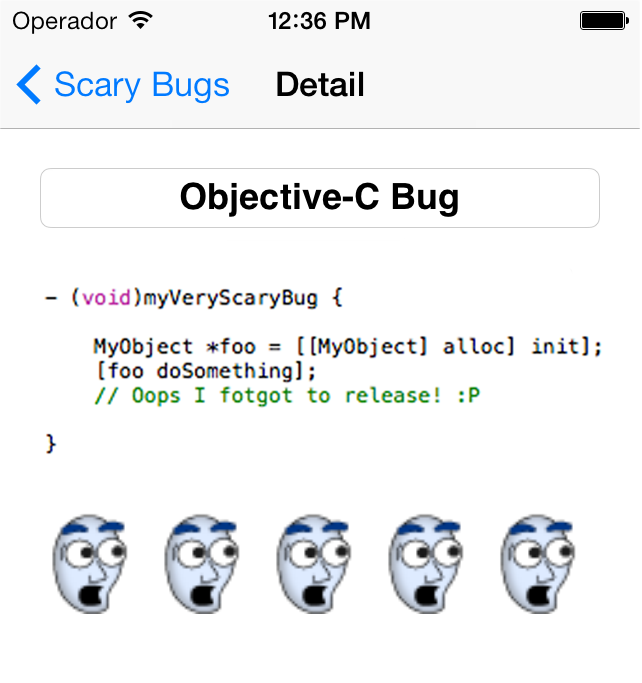
That’s it! If you compile and run the code, you should now be able to add your own bugs, such as this one:

An Objective-C Bug

Adding An Icon and Default Image

Ok, our app is looking pretty fun and amusing, let’s ship it and get rich!

Except it would be pretty embarassing if we did right now, I mean we don’t even have an icon!

Luckily, that is quite easy to fix. Earlier, we added an icon to our project file (logo1.png), from ExtraStuffForScaryBugs.zip. Let’s set that as the icon for our project!

To do that, simply open up ScaryBugs-Info.plist, and modify the Icon file to read “logo1.png”:

Setting Icon in Info.plist

As you continue in your iOS development adventures, you’ll be coming back to Info.plist quite a bit to configure your projects in various ways.

There’s one other thing we should fix as well. If you try running ScaryBugs on your iPhone, you might notice that after you tap the icon, there’s a pause before it shows up where just a black screen displays. That is kind of embarassing behavior – it looks like the app isn’t very responsive.

According to Apple’s documentation, the best thing to do is to display a screen that looks just like your app would, but without any data in it yet. That’s pretty easy to do. Just open up RootViewController.m, and make the following change:

// Replace tableView:numberOfRowsInSection's return statement to the following:
return 0; //return _bugs.count;

Then run the project on your device, and you’ll see an empty table view after it loads. In XCode, go to Window\Organizer, click on your device, go to the screenshots tab, and click “Capture” to get a screenshot:

Taking a Screenshot with Organizer

You can find these screenshots in /Users/yourUserName/Library/Application Support/Developer/Shared/Xcode/Screenshots. Find the one you took, rename it to “Default.png”, drag it over into your Resources folder to add it to your project.

Then restore tableView:numberOfRowsInSection to the way it was, and run it on your device again, and if all works well you should see a default screen as it loads instead of a blank view!

Bonus: Handling Long-Running Operations

If you run the app on the Simulator, everything probably appears fine, but if you run it on your iPhone and go to tap a picture to change it, there is a LONG delay as the UIImagePicker initializes. After picking a picture, there is another long delay as the image is resized (especially if it’s large). This is a very bad thing, as it makes your application seem unresponsive to users.

The main rule to keep in mind is that you should never perform long-running operations on the main thread. We’re currently violating this rule in two places, which is why our app appears unresponsive.

What you should do instead is run long-running operations on a background thread. Ideally, the operation would be done in the background as the user continues to do other things. But if the work is required to occur before the user can continue (such as loading the image picker), at the very least you should display a loading indicator of some sort so the user understands that the app is working and not jsut broken.

So that’s what we’ll do here – run the long-running code on a background thread, and display a “loading” view on the foreground thread while we wait for the operation to complete.

The desire to display a loading view is a common problem for app developers, so a lot of people have created some activity indicator libraries that we can use to save ourselves some time doing it ourselves. I’ve tried a bunch of these, my current favorite is DSActivityView by David Sinclair, so let’s try that. You can download a copy off their page, or just grab a copy here.

Once you’ve downloaded DSActivityView, add the files to your project under the “Views” group. Then make the following changes to EditBugViewController.h:

// Before @interface
@class DSActivityView;
 
// Inside @interface
DSActivityView *_activityView;
NSOperationQueue *_queue;
 
// After @interface
@property (retain) DSActivityView *activityView;
@property (retain) NSOperationQueue *queue;

Here we declare our DSActivityView and something we haven’t discussed yet called an NSOperationQueue (more on this later).

Next make the following changes to EditBugViewController.m:

// At top of file
#import "DSActivityView.h"
 
// After @implementation
@synthesize activityView = _activityView;
@synthesize queue = _queue;
 
// At end of viewDidLoad
self.queue = [[[NSOperationQueue alloc] init] autorelease];
 
// In viewDidUnload
self.queue = nil;
 
// In dealloc
[_queue release];
_queue = nil;
 
// Replace addPictureTapped with the following:
- (IBAction)addPictureTapped:(id)sender {
    if (_picker == nil) {   
        [DSBezelActivityView newActivityViewForView:self.navigationController.navigationBar.superview withLabel:@"Loading Image Picker..." width:160];        
        [_queue addOperationWithBlock: ^{
            self.picker = [[UIImagePickerController alloc] init];
            _picker.delegate = self;
            _picker.sourceType = UIImagePickerControllerSourceTypePhotoLibrary;
            _picker.allowsEditing = NO;
            [[NSOperationQueue mainQueue] addOperationWithBlock:^{
                [DSBezelActivityView removeViewAnimated:YES];
                [self.navigationController presentModalViewController:_picker animated:YES];    
            }];
        }];
    } else {
        [self.navigationController presentModalViewController:_picker animated:YES];
    }    
}
 
// Replace imagePickerController:didFinishPickingMediaWithInfo with the following:
- (void)imagePickerController:(UIImagePickerController *)picker didFinishPickingMediaWithInfo:(NSDictionary *)info {    
 
    [self dismissModalViewControllerAnimated:YES];
 
    [DSBezelActivityView newActivityViewForView:self.navigationController.navigationBar.superview withLabel:@"Resizing Image..." width:160];   
    [_queue addOperationWithBlock: ^{
        UIImage *fullImage = (UIImage *) [info objectForKey:UIImagePickerControllerOriginalImage]; 
        UIImage *thumbImage = [fullImage imageByScalingAndCroppingForSize:CGSizeMake(44, 44)];
        [[NSOperationQueue mainQueue] addOperationWithBlock:^{
            _bugDoc.fullImage = fullImage;
            _bugDoc.thumbImage = thumbImage;
            _imageView.image = fullImage;
            [DSBezelActivityView removeViewAnimated:YES];
        }];
    }]; 
}

The first thing we do here is create an NSOperationQueue in our viewDidLoad. Details on the NSOperationQueue could easily fill an entire tutorial, so for now just think of it as an object you can submit tasks to execute to, and it will run them on a background thread for you.

Next, you’ll see that we’ve rewritten our addPictureTapped method a good bit. The first thing we do is use DSActivityView to present a loading screen by calling the newActivityForView method. We pass the navigation bar’s superview so the popup covers the entire screen, including the navigation bar.

Then we call a method on the operation queue to schedule some work to run on the background called addOperationWithBlock. Note that this is a new API only available on iPhone OS 4.0 or later (so it wouldn’t work on the iPad right now). There are other ways you can do the same thing on older OS’s, but I think this is API is pretty cool and a nice way of doing things if you can use it, so I wanted to show it off here.

Anyway, addOperationWithBlock uses a new feature of iOS called blocks. If you haven’t read up on it yet, I’d recommend checking out Apple’s excellent short practical guide to blocks.

So, everything inside our curly braces after addOperationWithBlock will be run on a background thread so the animation of the “Loading” view can continue and the user can see that the app is working away. Here we do the long-running work of initializing the image picker. When wer’e done, we need to stop the activity indicator and present the view controller – but we need to do that on the main thread.

Why? Well the rule of thumb is any time you need to modify the UI, you need to do that on the main thread. And we can use a special built-in NSOperationQueue called the “mainQueue” to queue up another block to run on the main thread once the other work is complete.

We follow the same idea in imagePickerController:didFinishPickingMediaWithInfo.

And that’s it! Give it a run on your device, and you’ll see a new animation while the long-running work takes place, which makes for a much nicer user experience.

Loading Indicator with DSActivityView

Where To Go From Here?

Here is a sample project with all of the code we’ve developed in this tutorial series.

Please let me know if anything in the above is confusing or if you’d like me to go into more detail about anything.

Guess what – this isn’t the end for these bugs! We extend this project even more in a follow-up article on how to save your application data that you might enjoy if you’ve gotten this far, so check it out!


Category: iPhone

Tags: , ,

21 Comments

  1. Geraldo Nascimento (2 comments) says:

    Hello!
    I’m on step 2) of the changes to EditBugViewController, and I can’t find a commented – tableView commitEditingStyle:forRowAtIndexPath method anywhere. I ended up finding a suitable method signature at another site and continued the tutorial. The compiler is flagging some bugs!
    Specifically, it complains about _bugs not being declared and on the new method on step 3), addTapped, it says self.tableView is a “request for member ‘tableView’ in something not a structure or union”.

    Also, I’m not finding the commitEditingStyle method in your sample project!
    I’ve been following your tutorial series attentively, but I’ve only actually tried this project and one of your first Cocos2D projects, the ninja that threw stars. I’ll be doing the others soon!

  2. Ben (5 comments) says:

    Hi – similar issue here.

    tableView:commitEditingStyle:forRowAtIndexPath is in RootViewController.m, not EditBugViewController.m

    I’ve added it to that file and it seems to build ok; however, adding the addTapped method to EditBugViewController.m results in the errors described above, and adding it to RootViewController.m results in a successful build – but when you click the “add” button, the application quits. I don’t see any debug or error messages, but seeing as this is only the third app tutorial I’ve followed, they could be turned off for all I know.

    I would like to add that, having followed this and the previous tutorials, this is the first hiccup I’ve found and they’ve all been brilliantly useful. Please keep writing them :)

  3. Hermioni (1 comments) says:

    As a beginner, I, too, run into the same problem.

    I agree with Ben that the changes should apply to RootViewController.m, not EditBugViewController.m
    as they all have to do with RootView.

    I’ve also worked out that there is no method with signature
    initWithTitle:rating:thumbImage:fullImage:docPath:
    in class ScaryBugDoc
    (it should only be
    initWithTitle:rating:thumbImage:fullImage)
    So, I amended the method call and it worked!!

    Despite this hiccup, this is the best beginners tutorial I’ve encountered so far :-)

    Many thanks and please keep writing them.

  4. Mike Edwards (2 comments) says:

    Whatever it is that I have done wrong is giving me the same errors as above.

    Click on the ‘+’ and the app crashes and I can’t work out where to put the breakpoints to even begin to debug things.

    Could it be the version of Xcode? I’m running 3.2.4.

    Any help would be most welcome.

  5. Mike Edwards (2 comments) says:

    Not quite sure why it seems to be crashing the EditBugViewController.

    The debug stack looks like this:

    2010-09-13 23:25:28.660 ScaryBugs[17036:207] -[EditBugViewController addTapped:]: unrecognized selector sent to instance 0x6a35ee0
    2010-09-13 23:25:28.663 ScaryBugs[17036:207] *** Terminating app due to uncaught exception ‘NSInvalidArgumentException’, reason: ‘-[EditBugViewController addTapped:]: unrecognized selector sent to instance 0x6a35ee0′
    *** Call stack at first throw:
    (
    0 CoreFoundation 0x02488b99 __exceptionPreprocess + 185
    1 libobjc.A.dylib 0x025d840e objc_exception_throw + 47
    2 CoreFoundation 0x0248a6ab -[NSObject(NSObject) doesNotRecognizeSelector:] + 187
    3 CoreFoundation 0x023fa2b6 ___forwarding___ + 966
    4 CoreFoundation 0x023f9e72 _CF_forwarding_prep_0 + 50
    5 UIKit 0x002ba7f8 -[UIApplication sendAction:to:from:forEvent:] + 119
    6 UIKit 0x004c668b -[UIBarButtonItem(UIInternal) _sendAction:withEvent:] + 156
    7 UIKit 0x002ba7f8 -[UIApplication sendAction:to:from:forEvent:] + 119
    8 UIKit 0x00345de0 -[UIControl sendAction:to:forEvent:] + 67
    9 UIKit 0×00348262 -[UIControl(Internal) _sendActionsForEvents:withEvent:] + 527
    10 UIKit 0x00346e0f -[UIControl touchesEnded:withEvent:] + 458
    11 UIKit 0x002de3d0 -[UIWindow _sendTouchesForEvent:] + 567
    12 UIKit 0x002bfcb4 -[UIApplication sendEvent:] + 447
    13 UIKit 0x002c49bf _UIApplicationHandleEvent + 7672
    14 GraphicsServices 0x02d68822 PurpleEventCallback + 1550
    15 CoreFoundation 0x02469ff4 __CFRUNLOOP_IS_CALLING_OUT_TO_A_SOURCE1_PERFORM_FUNCTION__ + 52
    16 CoreFoundation 0x023ca807 __CFRunLoopDoSource1 + 215
    17 CoreFoundation 0x023c7a93 __CFRunLoopRun + 979
    18 CoreFoundation 0x023c7350 CFRunLoopRunSpecific + 208
    19 CoreFoundation 0x023c7271 CFRunLoopRunInMode + 97
    20 GraphicsServices 0x02d6700c GSEventRunModal + 217
    21 GraphicsServices 0x02d670d1 GSEventRun + 115
    22 UIKit 0x002c8af2 UIApplicationMain + 1160
    23 ScaryBugs 0×00002538 main + 102
    24 ScaryBugs 0x000024c9 start + 53
    25 ??? 0×00000001 0×0 + 1

  6. Ray Wenderlich (874 comments) says:

    Hey all, my apologies for the issues with this tutorial! I checked things over, and it appeared there were two problems:

    1) The tutorial said to make the changes to EditBugViewController, where I meant to say make them to RootViewController.
    2) The addTapped method made the wrong call to initialize the ScaryBugDoc (included a variable called docPath that doesn’t exist anymore).

    I’ve updated the tutorial with these two fixes. If you download the sample from part 2 and re-run the tutorial it should work fine now. Let me know if there are any further issues, and thanks all for pointing these out!

  7. Jason (19 comments) says:

    Hello I am trying to add this to an application with a tab bar. Whenever I add it the tab bar app crashes. Don’t know what Im doing wrong. Any help would be appreciated. Thank You

  8. earlystar (17 comments) says:

    Hi ray. I have another question. How to get data from website. Can you help me? Do you have any idea?

  9. earlystar (17 comments) says:

    is it possible to get data from any website? Using iPhone SDK

  10. Ray Wenderlich (874 comments) says:

    @Jason: Check my reply in the first part of the tutorial.

    @earlystar: Yep, you can get data from a website easily with NSURLRequest and NSURLConnection. You can use these classes directly, or you can use the ASIHTTPRequest library which simplifies things a bit for you.

  11. earlystar (17 comments) says:

    @ray:Thanks. I will try.

  12. Vidhya (2 comments) says:

    HEY I LIKED UR TUTORIAL..I AM an iphone beginner…i have created a tab based example but in main view..i tried to implement that in my project..but in third view..i can see the tabs but not its views..i used tab bar controller..can u help me…plz suggest me some code to use tab bars in between views not the main window

  13. Ray Wenderlich (874 comments) says:

    @Vidhya: I have already responded to this question via email. However, in case it is useful to others, here is my response:

    If you have a tab bar application that shows tabs but not the content of those tabs, I’d suggest double checking that you have configured each tab to point to the appropriate view controller.

    If you expand the entry for the Tab Bar Controller in your XIB, and click on each View Controller inside, in the Identity Inspector you can set the class for the View Controller to display. Optionally, if the class has a XIB in the Attributes Inspector you can set the NIB name as well.

  14. suakii (1 comments) says:

    Hi ray. I have a question.
    If I change the code like below this application is crashed.
    // At end of viewDidLoad
    self.queue = [[[NSOperationQueue alloc] init] autorelease];

    The error message is that “*** -[NSOperationQueue release]: message sent to deallocated instance ”
    Thank you.

  15. Ray Wenderlich (874 comments) says:

    @suakil: Double check that your queue property is declared as “retain”, and that you aren’t calling release on _queue anywhere.

  16. biz (2 comments) says:

    Thanks for the great tutorials Ray.
    I am having trouble with part 3 and the NSOperationQueue.
    While my os version and Xcode version appear to support it, this is what I get when I try to build:

    /EditBugViewController.m:102: warning: ‘NSOperationQueue’ may not respond to ‘+mainQueue’
    /EditBugViewController.m:102: warning: (Messages without a matching method signature
    /EditBugViewController.m:105: warning: no ‘-addOperationWithBlock:’ method found

    I have Xcode 3.2.2, OS X 10.6.4, (I set the simulator to 3.2)
    I typed in your example and got this error.

    Then, I downloaded and compiled your project with your code and got the same errors.

    Any ideas why either of our code doesn’t seem to build?

    Thanks.

  17. biz (2 comments) says:

    Big oops…
    I forgot that blocks are available in iOS 4.0. Since Xcode 3.2.2 didn’t support iOS 4.0, I added the Xcode 3.2.4 and it compiles correctly. Sorry for the bad post.

  18. Ray Wenderlich (874 comments) says:

    @blz: No problem glad you got it working!

  19. Diego (1 comments) says:

    I just have to say…. WOW

    I haven’t read it all or started using it, but for what I see, this is a great tutorial!!!! Thank you so much !!!!!

  20. Ray Wenderlich (874 comments) says:

    @Diego: Haha thanks man glad you like it! :]

  21. Ram Shrestha (1 comments) says:

    hi,
    as u said it only works for ios 4.0 or later.but i need that same feature for ios 3.0. please help.

    thanks

I'd love to hear your thoughts!