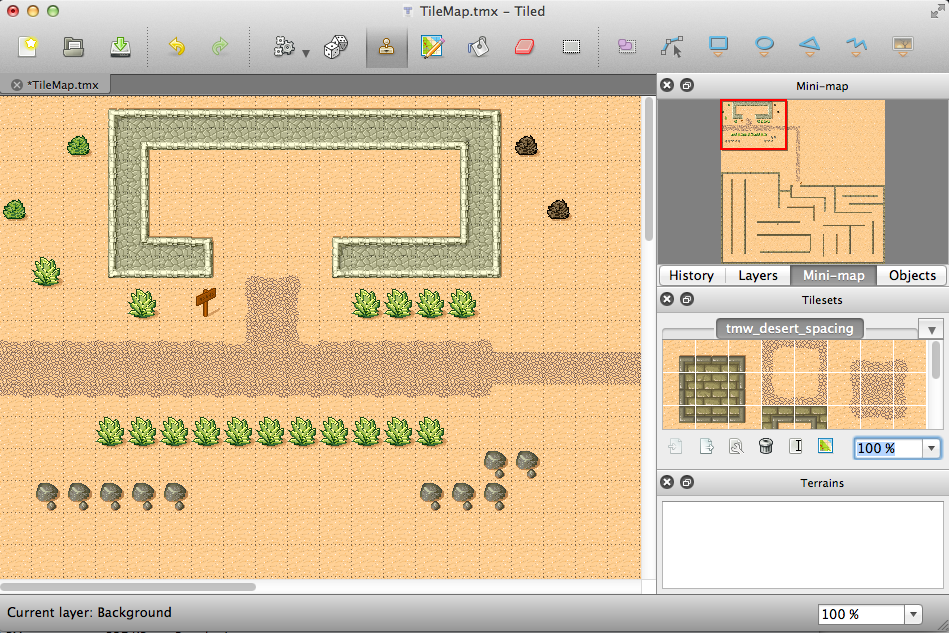

In this 2-part tutorial, we’re going to cover how to make a tile based game with Cocos2D and the Tiled map editor. We will do so by creating a simple tile-based game where a ninja explores a desert in search of tasty watermelon-things!
In this part of the tutorial, we’ll cover how to create a map with Tiled, how to add the map to the game, how to scroll the map to follow the player, and how to use object layers.
In the second part of the tutorial, we’ll cover how to make collidable areas in the map, how to use tile properties, how to make collectable items and modify the map dynamically, and how to make sure your ninja doesn’t overeat.
If you haven’t already, you may wish to start with the How To Make A Simple iPhone Game with Cocos2D Tutorial Series, since that covers most of the basics that we’ll build upon here.
Ok, so let’s have some fun with tile maps!
Creating a Project Skeleton
We’re going to start by creating a skeleton project to make sure we have all of the files we need for the rest of the project in the right spot.
So load up XCode, pick “File\New Project…” pick the template for a cocos2d Application, and create a project named TileGame.
Next, download this zip file of resources for the game. The zip file contains the following:
- A sprite we’ll use for our player object. This may look familiar from the How to Make A Simple iPhone Game with Cocos2D Tutorial!
- Some sound effects we’ll be using that I made with the excellent cxfr utility.
- Some background music I made with Garage Band (see this post for more info).
- The tile set we’ll be using – it actually comes with the map editor we’ll be using, but I thought it would be easier to include it with everything else.
- Some additional “special” tiles we’ll explain a bit later.
Once you have the resources downloaded, unzip it and drag all of the resources to the “Resources” group in your project. Verify “Copy items into destination group’s folder (if needed)” is checked, reference type is “Relative to Project”, and click Add.
If all works well, all of the files should be listed in your project. That’s it for now – time to have some fun and make our map!
Making a Map with Tiled
Cocos2D supports maps created with the open source Tiled Map Editor and saved in TMX format.
If you visit the above link, you’ll see there are two versions of Tiled – one written with the Qt application framework, and one written with Java. There are two versions because Tiled was written first in Java, and they are porting it over to Qt.
Which version you use is largely up to you. In this tutorial we will cover using the Qt version because that is the development mainline for Tiled from now on, but some people like to use the Java version because not all of the old features have been completely ported over yet.
So anyway – if you would like to follow along, download the Qt version and install and run the app. Go to File\New, and fill in the dialog as follows:
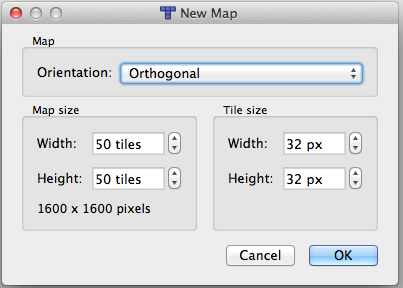
In the orientation section, you can choose between Orthogonal (think: the Legend of Zelda) or Isometric (think: Disgaea). We’re going to pick Orthogonal here.
Next you get to set up the map size. Keep in mind that this is in tiles, not pixels. We are going to make a smallish sized map, so choose 50×50 here.
Finally you specify the tile width and height. What you choose here depends on the tile set that your artist will be making. For this tutorial, we are going to use some sample tiles that come with the Tiled editor which are 32×32, so choose that.
Next, we have to add the tile set that we’ll be using to draw our map. Click on “Map” in the menu bar, “New Tileset…”, and fill in the dialog as follows:
To get the image, just click Browse and navigate to your TestGame folder, and pick the tmw_desert_spacing.png file that you downloaded from the resource zip and added to your project. It will automatically fill out the name based on the filename.
You can leave the width and height as 32×32 since that is the size of the tiles. As for margin and spacing, I couldn’t find any good documentation on the exact meaning of these, but this is what I think they mean:
- Margin is how many pixels Tiled should skip (for both width and height) for the current tile before it starts looking for actual tile pixels.
- Spacing is how many pixels Tiled should advance (for both width and height) after it reads the actual tile pixels to get to the next tile data.
If you take a look at tmw_desert_spacing.png, you’ll see that each tile has a 1px black border around it, which is would explain the settings of margin and spacing as 1.
Once you click OK, you will see the tiles show up in the Tilesets window. Now you can start drawing away! Simply click the “Stamp” icon in the toolbar, then click a tile, then click anywhere on the map you’d like to place a tile.
So go ahead and draw yourself a map – be as creative as you’d like! Make sure to add at least a couple buildings on the map, because we’ll need something to collide into later!
Some handy shortcuts to keep in mind:
- You can drag a box around a series of tiles in the Tileset picker, to put down multiple adjacent tiles at the same time.
- You can use the paint button in the toolbar to paint the entire background with a base tile.
- You can zoom in and out with “View\Zoom In…” and “View\Zoom Out…”.
Once you’re done drawing the map, double click on the Layer in Layers (which probably says “Layer 1″ right now), and change the name to “Background”. Then click “File\Save” and save the file to the Resources folder of your TileMap project, and name the file “TileMap.tmx”.
We’re going to do some more stuff with Tiled later, but for now let’s get this map into our game!
Adding the Tiled Map to our Cocos2D Scene
First thing first, right click on Resources, click “Add\Existing Files…” and add the new TileMap.tmx file you just created to your project.
Open up HelloWorldScene.h, and add a couple of member variables/properties we’ll need:
// Inside the HelloWorld class declaration CCTMXTiledMap *_tileMap; CCTMXLayer *_background; // After the class declaration @property (nonatomic, retain) CCTMXTiledMap *tileMap; @property (nonatomic, retain) CCTMXLayer *background; |
Then make the following changes to HelloWorldScene.m:
// Right after the implementation section @synthesize tileMap = _tileMap; @synthesize background = _background; // In dealloc self.tileMap = nil; self.background = nil; // Replace the init method with the following -(id) init { if( (self=[super init] )) { self.tileMap = [CCTMXTiledMap tiledMapWithTMXFile:@"TileMap.tmx"]; self.background = [_tileMap layerNamed:@"Background"]; [self addChild:_tileMap z:-1]; } return self; } |
Here we make a call to the CCTMXTiledMap file, instructing it to create a map from the map file we created with Tiled.
Some quick background on CCTMXTiledMap. It’s a CCNode, so you can set its position, scale, etc. The children of the node are the layers of the map, and there’s a helper function where you can look the up by name – which we do here to get the background. Each layer is a subclass of CCSpriteSheet for performance reasons – but this also means that you can only have one tileset per layer.
So all we do here is save a reference to the tile map and the background layer, then add the tile map to the HelloWorld layer.
And that’s it! Compile and run the code, and you should see the bottom left corner of your map:
Not bad! But for this to be a game, we need three things: a) a player, b) a starting point to put the player, and c) to move our view so that we are looking at the player.
And this is where it gets tricky. So let’s tackle this next!
Tiled Object Layers and Setting Tile Map Position
Tiled supports two kinds of layers – tile layers (which is what we’ve been working with so far), and object layers.
Object layers allow you to draw boxes around portions of the maps to specify areas where things might happen. For example, you might make an area where monsters spawn, or an area that is deadly to enter. In our case, we’re going to create an area for our “spawn point” for our player.
So go to the menu bar in Tiled and pick “Layer\Add Object Layer…”, name the layer “Objects”, and click OK. If you draw on the map, you’ll notice it doesn’t draw a tile, instead it draws a weird looking gray shape, which you can expand to cover multiple tiles or move around.
We just want to select one tile for the player to start in. So choose somewhere on your map and click the tile. The size of the box doesn’t really matter, since we’ll just be using the x, y coordinates.
Then right click the gray object you just added, and click “Properties”. Give it a name of “SpawnPoint” and click OK:
Supposedly, you can get fancy here and set the Type of the object to a Cocos2D class name and it will create an object of that type for you (such as CCSprite), but I couldn’t find where it was doing that in the source code. Update: Tyler from GeekAndDad.com pointed out that the code used to be in a previous version of Cocos2D, but was removed due to issues with it a while back.
Anyway – we’re just going to leave the type blank, which will create an NSMutableDictionary for us where we can access the various aspects of the object, including the x, y coordinates.
Save the map and go back to XCode. Make the following changes to HelloWorldScene.h:
// Inside the HelloWorld class declaration CCSprite *_player; // After the class declaration @property (nonatomic, retain) CCSprite *player; |
Then make the following changes to HelloWorldScene.m:
// Right after the implementation section @synthesize player = _player; // In dealloc self.player = nil; // Inside the init method, after setting self.background CCTMXObjectGroup *objects = [_tileMap objectGroupNamed:@"Objects"]; NSAssert(objects != nil, @"'Objects' object group not found"); NSMutableDictionary *spawnPoint = [objects objectNamed:@"SpawnPoint"]; NSAssert(spawnPoint != nil, @"SpawnPoint object not found"); int x = [[spawnPoint valueForKey:@"x"] intValue]; int y = [[spawnPoint valueForKey:@"y"] intValue]; self.player = [CCSprite spriteWithFile:@"Player.png"]; _player.position = ccp(x, y); [self addChild:_player]; [self setViewpointCenter:_player.position]; |
Ok let’s stop for a second and explain the bit about the object layer and object groups. First note that you retrieve object layers via the objectGroupNamed method on the CCTMXTiledMap object (rather than layerNamed). It returns a special CCTMXObjectGroup object.
We then call the objectNamed method on the CCTMXObjectGroup to get a NSMutableDictionary containing a bunch of useful info about the object, including x and y coordinates, width, and height. In this case all we care about is the x,y coordinates, so we pull those out and set that as the position of our player sperite.
At the end we want to set the view to focus on where the player is. So now add the following new method to the file:
-(void)setViewpointCenter:(CGPoint) position { CGSize winSize = [[CCDirector sharedDirector] winSize]; int x = MAX(position.x, winSize.width / 2); int y = MAX(position.y, winSize.height / 2); x = MIN(x, (_tileMap.mapSize.width * _tileMap.tileSize.width) - winSize.width / 2); y = MIN(y, (_tileMap.mapSize.height * _tileMap.tileSize.height) - winSize.height/2); CGPoint actualPosition = ccp(x, y); CGPoint centerOfView = ccp(winSize.width/2, winSize.height/2); CGPoint viewPoint = ccpSub(centerOfView, actualPosition); self.position = viewPoint; } |
Ok, let’s explain this a bit too. Imagine this function is setting the center of a camera. We allow the user to pass in any x,y coordinate in the map here – but if you think about it there are some points that we don’t want to be able to show – for example we don’t want the screen to extend beyond the edges of the map (where it would just be blank space!)
For example, take a look at this diagram:
See how if the center of the camera is less than winSize.width/2 or winSize.height/2, part of the view would be off the screen? Similarly, we need to check the upper bounds as well, and that’s exactly waht we do here.
Now so far we’ve been treating this function as if it was setting the center of where a camera was looking. However… that isn’t exactly what we’re doing. There is a way in Cocos2D to manipulate the camera of a CCNode, but using that can make things more difficult than the solution we’re going to use: moving the entire layer instead.
Take a look at this diagram:
Imagine a big world, and we’re looking at the coordinates from 0 to winSize.height/width. The center of our view is centerOfView, and we know where we want the center to be (actualPosition). So to get the actual position to match up to the center of view, all we do is slide the map down to match!
This is accomplished by subtracting the actual position from the center of view, and then setting the HelloWorld layer to that position.
Phew! Enough theory – let’s see it in action! Compile and run the project, and if all goes well you should see your ninja in the scene, with the view moved to show him strutting his stuff!
Making the Ninja Move
We’re off to a good start, but our ninja is just sitting there! And that’s not very ninja-like.
Let’s make the ninja move simply by moving him in the direction the user taps. Add the following code to HelloWorldScene.m:
// Inside init method self.isTouchEnabled = YES; -(void) registerWithTouchDispatcher { [[CCTouchDispatcher sharedDispatcher] addTargetedDelegate:self priority:0 swallowsTouches:YES]; } -(BOOL) ccTouchBegan:(UITouch *)touch withEvent:(UIEvent *)event { return YES; } -(void)setPlayerPosition:(CGPoint)position { _player.position = position; } -(void) ccTouchEnded:(UITouch *)touch withEvent:(UIEvent *)event { CGPoint touchLocation = [touch locationInView: [touch view]]; touchLocation = [[CCDirector sharedDirector] convertToGL: touchLocation]; touchLocation = [self convertToNodeSpace:touchLocation]; CGPoint playerPos = _player.position; CGPoint diff = ccpSub(touchLocation, playerPos); if (abs(diff.x) > abs(diff.y)) { if (diff.x > 0) { playerPos.x += _tileMap.tileSize.width; } else { playerPos.x -= _tileMap.tileSize.width; } } else { if (diff.y > 0) { playerPos.y += _tileMap.tileSize.height; } else { playerPos.y -= _tileMap.tileSize.height; } } if (playerPos.x <= (_tileMap.mapSize.width * _tileMap.tileSize.width) && playerPos.y <= (_tileMap.mapSize.height * _tileMap.tileSize.height) && playerPos.y >= 0 && playerPos.x >= 0 ) { [self setPlayerPosition:playerPos]; } [self setViewpointCenter:_player.position]; } |
First, we set our layer as touch enabled in the init method. Then we override the registerWithTouchDispatcher method to register ourselves to handle targed touch events. This will result in ccTouchBegan/ccTouchEnded methods being called (singular case), instead of ccTouchesBegan/ccTouchesEnded methods (plural case).
You may wonder why even bother with this, since we used the ccTouchesBegan/ccTouchesEnded method just fine in the How to Make A Simple iPhone Game with Cocos2D Tutorial. It’s true, in this case it doesn’t matter either way. However, I wanted to introduce everyone to this method in case you hadn’t seen it already, because it has two significant advantages (these are listed verbatim from the cocos2D source):
- “You don’t need to deal with NSSets, the dispatcher does the job of splitting them. You get exactly one UITouch per call.”
- “You can *claim* a UITouch by returning YES in ccTouchBegan. Updates of claimed touches are sent only to the delegate(s) that claimed them. So if you get a move/ended/cancelled update you’re sure it’s your touch. This frees you from doing a lot of checks when doing multi-touch.”
Anyway, inside our ccTouchEnded location, we convert the location to view coordinates and then to GL coordinates as usual. What is new is we call [self convertToNodeSpace:touchLocation].
This is because the touch location will give us coordinates for where the user tapped inside the viewport (for example 100,100). But we might have scrolled the map a good bit so that it actually matches up to (800,800) for example. So calling this method offsets the touch based on how we have moved the layer.
Next, we figure out the difference between the touch and the player position. We have to choose a direction based on the touch, so first we decide whether to move up/down or side to side based on whichever is the greatest distance away. Then we just see if it’s positive or negative to move up or down.
We adjust the player position accordingly, and then set the viewpoint center to be the player position, which we already wrote in the last section!
Update: Note we have to add a safety check to make sure we’re not moving our player off the map as well! This was pointed out by Geek & Dad from the comments section – thanks!
So compile and run the project and try it out! You should now be able to tap the screen to move the ninja around.
Where To Go From Here?
That’s all for this part of the tutorial. At this point you should know the basics about creating maps and importing them into your game.
Here’s a sample project with the code we’ve developed so far.
Next check out part 2 of the tutorial, where we show how to add collision detection into the map, to prevent our ninja from happily walking through the walls!
Category: iPhone


Hi Ray!, VERY VERY nice tutorial man! as always, keep it up…
Thanks
Awesome work as usual Ray! Can’t wait to get get home and run through it. Stuck at work and no mac :(
Interesting tutorial. Very good work!
Regards Hernán.
ONIRIC GAMES
My game builds but crashes in the iphone simulator before it opens :(
wow, another series of your wonderful tutorials. Can wait to start. Thanks a lot ray.
@Dan: Anything useful in the debug output?
If you get stuck send me your project via email and we’ll work through it.
Sweet. This is one of the finest Cocos2D tutorials I have personal read. You did a great job here and this really deserves to be on the Cocos2D wiki as a reference. I have seen a lot of explanations for this but by far this is the easiest to understand and actually LEARN from.
: )
@Ray
Nope, there are no errors, no warnings, it builds fine but crashes as its opening. I’m wondering if anyone else was able to get through it fine? Maybe I put a method in a wrong place? I’ve tried from scratch twice now.
@Dan: I ran through the tutorial from scratch myself to make sure all was OK and didn’t see any errors over here. I uploaded the resulting sample project and linked it to the end of the article – check it out and let me know if that helps track down the problem! :]
@Ray: Our code was exact, however your sample loaded, while mine still crashed. I switched out my tilemap.tmx with the one you included in the source code, and it worked!
Now I’m not too sure why though… I’ve made maps in tiled before and put them into my cocos2d files, however by simply changing the file with yours, the game loaded fine. Any thoughts?
@Dan: Hm, try taking a look at the XML for the TMX files and compare them… maybe the layers were named differently in your version or some such?
Thanks for the great tutorial!!
Any advice on how to optimize the tilemap for larger projects in order to have a good FPS?
Is there an optimal value for the tilemap/tile size?
Is it better to use many layers on one tilemap or many different tilemaps?
Thanx ! :)
Ray…
Thank you so much for posting this! I have been searching for examples about tilemap games and haven’t come across something yet that makes sense. This is perfect and I can’t wait to see the next tutorial about this topic… Keep up the *great* work.
@heyapps: One tip I’ve heard is that when you’re dealing with maps larger than 100×100, it’s more efficient to split the map into multiple 100×100 maps and load/unload them as you progress through the map.
Regarding multiple layers vs. multiple tilemaps… looking at the code I don’t think it would matter either way, as each layer actually derives from CCSpriteSheet and the tilemap object itself is mostly just a container.
If anyone else has some good performance tips feel free to chime in! :]
hi ray, i have been following ur great beginner tutorial on cocos2D. i’m curious about where u get the image like the tmw_desert _spacing.png file? Did you design yourself? Do you have any reference on that? many thanks…keep up ur good works…
@dave: tmw_desert_spacing.png came with the Tiled map editor, I didn’t make it myself. As for making game art, I am the wrong person to ask about that as I am much more of a programmer than an artist! :]
However those specific tiles were made as pixel art, and @alon_ezer from Twitter recommended these two links to me as good resources:
http://www.pixeljoint.com/pixels/tutorials.asp?id=2252
http://psd.tutsplus.com/articles/techniques/learn-how-to-draw-hand-crafted-pixel-art-in-photoshop/
Good luck!
great tutorial
i hope part 2 will come very soon
cant wait for it
i saw a tutorial on tiled maps
but it was waaaaaaaay to advanced for me
your tutorial is really basic and easy to follow for everyone
im planning to make a game with collecting stuff in a huge maze
thanks again
Great tutorial!
@Dan, I had the same problem. When exporting the .tmx file the image was referenced wrong.
My .tmx file had
So I just changed the location of the image to:
and it worked.
Oops, my comment was filtered. Hopefully this works:
img source=”../Projects/TileGame/Resources/tmw_desert_spacing.png”
change to
img source=”tmw_desert_spacing.png”
Wow. Thanks so much. The documentation regarding tiled maps on the iPhone CoCo2D wiki is a little outdated and incomplete. I really appreciate the work you have done here.
@Josh
Thanks for the tip, I’ll give it a shot later when I can, glad someone had the same problem and was able to solve what was wrong :)
great tutorials, thanks for making them.
i have tried to adapt this to a game that i am making, but i had two problems.
1) The NSAssert line was making my project crash, but it was fine when i commented it out.
2)When i set the position of the sprite using the NSMutbleDictionary, it does not seem to work. I tried setting the position plain numbers, and it seem to work for a split second, then the ball goes to the bottom of the screen.
Pleases can you help me as i have no idea why this is happening.
suggestion:
NSMutableDictionary *spawnPoints = [objects objectNamed:@"SpawnPoint"];
It seems like objectNamed returns a single object so naming this variable in the plural might be confusing to some readers. Additionally, the count assertion is a little confusing since it’s counting the number of properties for the object, not the number of objects. I think it’d make more sense for this code to be:
NSMutableDictionary *spawnPoint = [objects objectNamed:@"SpawnPoint"];
NSAssert( spawnPoint != nil, @”didn’t find the spawn point!”);
// x & y are put in by tiled, so if the object exists, then x & y are nearly certain to exist
int x = [[spawnPoint valueForKey: @"x"] intValue];
int y = [[spawnPoint valueForKey: @"y"] intValue];
or am I missing something?
(feel free to just change it and not post this if you agree).
thanks for the help, but i’m afraid that it still doesn’t work. the NSAaaert line still makes the project crash, and the same thing is still happening with the position
@dan, i had the same problem, check that you also have the spritesheet in your resources folder, that was what the problem was for me
@Dad: Good point, my safety checks didn’t make any sense as is. I had intended to put them in there as a safety check to make sure the tile map was set up right (i.e. had the Objects object group and SpawnPoint object defined). I updated the post/sample code with proper checks, thanks!
@Daniel: If you’re still having trouble with the NSAsserts, verify that your Tile Map is set up properly. You can download the sample project and compare yours to mine. Things should pretty much line up except for the contents of the “base64″ section.
thanks for the help. It appears that i had 2 copies of the tile map, and when i edited it it was saving to the wrong one. I am no longer having trouble with NSAssert, but i have found that self.position is doing nothing. Does anyone have any idea why this is happening?
@Daniel: You could try comparing your project to the sample project, or set a breakpoint in setViewpointCenter and verify that actualPosition/centerOfView/viewPoint are being set to the correct values.
Hello Ray.
This is a nice and useful tutorial, I’v learned many interesting things. I’ll be waiting for part two.
Keep the good work!
Thanx for taking time to show us all this things Ray, So if I want to make my own tiles, how do I go about in doing that when I’ve done an image in Photoshop?
Thank you for these incredible tutorials. Your explanations go a really long way to demystifying the framework.
In the interest of giving back, I’d like to share this little bit of code I used to make sure the ninja gets aligned to the tiles regardless of how sloppy I am in placing the object. This goes in the init method after setting the x,y from the spawnPoint:
// nudge x,y so that the player position starts aligned with tile grid
// round to the nearest tile corner then add half to get center of tile for x,y
int tileWidth = _tileMap.tileSize.width;
int tileHeight = _tileMap.tileSize.height;
x = (x – (x % tileWidth)) + (tileWidth / 2);
y = (y – (y % tileHeight)) + (tileHeight / 2);
Really looking forward to the next installment!
@freeforce: There’s nothing magic about tiles – all you have to do is take your tiles and combine them into a single image, optionally separated by some sort of grid to help tell them apart.
@rb: Cool! And you’ll see in the second part of the series there is a method we’ll add to the project that does something quite similar to what you’re doing there :]
Question about the player movement: I am aiming to use tilt to move the player and have set this up in a different project that didn’t use tilemaps. When the player moves in my project with just a background image it’s smooth and not jumpy. I ported this into the tilemap example here and it seems to move very jumpy. I will keep playing with it but was just curious if you have ever attempted to use accelerometer to move the player in a tilemap game and if you had any tips before I begin researching how to fix. I also had code in my previous project to ensure that the player never goes “off screen”. Anyway, I obviously will continue to tweak and research but just wanted to ask in case you had gone through something similar and had good ideas.
@Jeff: Haven’t played around with accelerometer & tilemaps, but here’s a few things to consider…
How large is your tilemap? Tilemaps don’t perform that well if you get over 100×100 or so, so it’s good to break a large map down into separate tilemaps.
Also, are you modifying any properties of individual tiles? If tiles are untouched, they are more efficient, but once you start modifying individual tiles they become CCSprites, which are less efficient.
@Daniel
Hey if you arnt on hello world screen and your code is deeper in another class. Transitions can mess up your views location. If your view defaults to your characters postition before the transition ends, once the trasition ends the view is moved back to its original spot.
Hope this helped :)
@Ray,
Right now I am using the exact tilemap you provided in this example. Basically instead of touching to move, I have it so I can tilt to move. It is currently moving the ninja around and the issue is that it moves the background to a certain point but then stops. For instance I start out at the bottom of your map where there are a couple shrubs around. I can move up about a screen height and to the right about the same and then it stops. Some setting obviously is stopping it from continuing on to the top of the tilemap. I know something probably stupid but I am just trying to do a proof of concept so I know I can use tilt to move around an entire tilemap. My movement is not jumpy now but it just stops due to something in the “setViewpointCenter” I believe but am still trying various things.
Okay, now I have it where I can move all around the map using Tilt controls. The only thing left is to control the player so it doesn’t go off the sides of the Tilemap. The code I have for that doesn’t seem to be taking effect so back to the drawing board there. It will be cool to start interacting with the Tilemap though and spawning enemies and objects to collide with.
Great tutorial Ray!
Can’t wait to play around with this later tonight.
One idea for next tutorial would be some simple enemies :)
Just a quick “thanks again!” Geek’s on summer break now and rocking on this tutorial and loving it!
Why did you use tileMap and _tileMap? why not just use tileMap?
@Mike: Thanks for helping out Daniel! :]
@Jeff: Very cool, glad to hear your game is coming along nicely! :]
@Dad, @MrLucky: Actually, Dad’s son may be working on a follow-up post with exactly that! :]
@TG: Check out my reply to @Jason in this tutorial, where I discuss why I use the underscore convention:
http://www.raywenderlich.com/352/how-to-make-a-simple-iphone-game-with-cocos2d-tutorial
Ran into an issue tonight trying to use a custom built map from Tiled. Kept getting “SIGABRT” when trying to run the project with my map in. My first attempt had a map that was 20×100 in size (tiles). I was thinking maybe this was too large so attempted to resize the map in Tiled to 20×50. Maybe the resize didn’t take, so I can try creating a new one from scratch but was just curious if anyone had any issues similar when building a new map?
We’ve used multiple different built from scratch tile maps that all worked (50×50 mostly). Only thing like this we’ve seen is if you fail to add your new map to the project or type the name of it wrong in the code for loading it and so no TMX map is loaded at all.
Otherwise, open the debugger and look at the call chain (stack backtrace).
One crashing bug that’s easy to get is if you try to move off the edge of the world – boom! You can replicate this by moving to the edge of the world and then tap between the center of the character and the outside edge of the tile.
Geek’s fixed it and handed me the following code snippet to post. This goes in ccTouchEnded and replaces the existing
[self setPlayerPosition:playerPos];
code there now and just adds a check to make sure the new position is on the map before changing the player position.
if (playerPos.x <= (_tileMap.mapSize.width * _tileMap.tileSize.width) &&
playerPos.y = 0 &&
playerPos.x >= 0 )
{
[self setPlayerPosition:playerPos];
}
ack. it chopped out a bunch of the code… argg..
test: < foo >
ok. have to encode less than and greater than symbols, here’s a second try at the fix code:
if (playerPos.x <= (_tileMap.mapSize.width * _tileMap.tileSize.width) &&
playerPos.y <= (_tileMap.mapSize.height * _tileMap.tileSize.height) &&
playerPos.y >= 0 &&
playerPos.x >= 0 )
{
[self setPlayerPosition:playerPos];
}
@Dad: Thanks for helping out Jeff, and thanks also to you and your son for the safety check for preventing the player from moving off the map! I’ve added that into the sample projects and the post – thanks again!
Im trying to follow your tutorial, but with my very first try to build and run the code (where it just shows the bottom left corner of the map) it crashes with EXC_ARITHMETIC in CCTMXXMLParser.m at line 104.
I am using Tiled QT 0.4.0 and cocos2d-iphone 0.99.3
Please, do you have a ide whats wrong?
Oh I figured it out… The .tmx file has a crazy reference to the .png file, I manually fixed it and it works now.
I have not heard this mentioned but I have found that when I have multiple tilesets in one project, it crashes.
So for example, I have a tmx file called “TileMap.tmx” it uses multiple maps: map1.png, map2.png. If I use either one xcode runs great, but when I try to use them both it crashes”. Anyone else having this issue?
@Dag: Each layer in a tilemap can only have at most one tile set – this is because layers are implemented as subclasses of CCSpriteSheet, and a sprite sheet can only be based on one texture.
However, different layers should be able to have different textures. Which are you trying to do?
I was trying to do the first. Your response makes sense. Thank you for your quick help on that.
Hi,
I have always been confused by SwallowsTouches:YES. Any advice Ray?
Regards
Indy
@indy: As I understand it, if you set up your handler to swallow touches and then return TRUE from ccTouchBegan, the touch that was passed in to your handler will no longer be delivered to any further touch handlers (or standard ccTouchesEnded methods).
This could potentially be useful if you had a subview in your scene that you wanted to process touches and prevent anything else from handling them if it did, I suppose.
Hi Ray,
Thanks…so if you use SwallowsTouches = Yes, the touch doesnt get to flow through all touchhandlers?? i.e. it receives TouchBegan so gets swallowed and so doesnt get passed to TouchEnded?
Cant wait for a tutorial on touches ;-)….including the old and new touch dispatchers, gestures, swallowstouches and priorities….!!
Keep up the good work!
i
@Indy I believe the design is to have it only call the handlers for the object/CCNode that said YES to swallows touches. The idea is that if you have multiple layers of CCNodes you can decide which one get which touches. Each “layer” that has registered touch handlers gets a chance at the touch event from frontmost to rearmost. The one that says “YES” for swallows has then claimed the touch and no other “layers” get a chance at it, and all further touch callbacks for that touch ‘event’ only go to that “layer”. Easy to write a quick test app to test this if you want, or, you can also look at the cocos2d-iphone source and understand what it’s doing that way.
@Dad, thanks..makes sense. Although you are saying its a top to bottom priority on z-order? I thought all delegates received the touch at the same time (and one can claim it)…and the “priority” had more to do with which receives touch first?
Regards
i
Question about the object layer. I see how it works great for the SpawnPoint of the main player. My question is let’s say I wanted to add a bunch of objects all around the map to spawn enemies. What is the most efficient way to add enemies that are off the viewable screen? If I placed objects at each corner of the map let’s say. I have a feeling the best way would be to only spawn the object once it would be shown on the visible screen, but if anyone has done this and has good tips please let me know.
I have it working nicely with accelerometer based movement, stopping the player from going off map, etc, but now want to add in the enemies and before I start just want to make sure I am doing things in the best way. Thanks for any info!
@Dad: Thanks for helping out! It’s weird to keep calling you Dad btw haha!
@Indy: The easiest way to see how it works might be to look at CCTouchDispatcher.m (see touches:withEvent, at line 210 of 0.99.4-beta). You’ll see it keeps track of a list of handlers, sorted by the priority order you pass in when you call addTargetedDelegate, and as soon as a handler “claims” a touch it stops calling the rest of the handlers for that touch, as Dad mentioned also delivers the rest of the touches (move, end) to the handler that claimed it.
@Jeff: I’ve spawned enemies offscreen before, there’s no problem with that. I liked it because then as they move onscreen it’s natural how they flow into the view. One strategy could be to put a spawn point object somewhere near the edge of the map, and just spawn at an offset to the spawn point so that it will be offscreen.
Does anyone know why I am getting True back for both Collidable and Collectible, even though in my Meta layer, the tile is only the green one (with a single property for Collectible)?
@Greg: Not sure why that would be happening, maybe take a look at the TMX file to make sure it’s set up the way you want and step through with the debugger?
I’m getting this error in my console.
[Session started at 2010-06-25 16:26:47 -0400.]
2010-06-25 16:26:50.184 TileGame[1603:207] cocos2d: cocos2d v0.99.4-rc2
2010-06-25 16:26:50.186 TileGame[1603:207] cocos2d: Using Director Type:CCDisplayLinkDirector
2010-06-25 16:26:50.192 TileGame[1603:207] cocos2d: GL_VENDOR: Apple Computer, Inc.
2010-06-25 16:26:50.194 TileGame[1603:207] cocos2d: GL_RENDERER: Apple Software Renderer
2010-06-25 16:26:50.194 TileGame[1603:207] cocos2d: GL_VERSION: OpenGL ES-CM 1.1 APPLE
2010-06-25 16:26:50.195 TileGame[1603:207] cocos2d: GL_MAX_TEXTURE_SIZE: 2048
2010-06-25 16:26:50.196 TileGame[1603:207] cocos2d: GL_MAX_MODELVIEW_STACK_DEPTH: 16
2010-06-25 16:26:50.196 TileGame[1603:207] cocos2d: GL supports PVRTC: YES
2010-06-25 16:26:50.197 TileGame[1603:207] cocos2d: GL supports BGRA8888 textures: NO
2010-06-25 16:26:50.197 TileGame[1603:207] cocos2d: GL supports NPOT textures: YES
2010-06-25 16:26:50.198 TileGame[1603:207] cocos2d: GL supports discard_framebuffer: YES
2010-06-25 16:26:50.198 TileGame[1603:207] cocos2d: compiled with NPOT support: NO
2010-06-25 16:26:50.199 TileGame[1603:207] cocos2d: compiled with VBO support in TextureAtlas : YES
2010-06-25 16:26:50.200 TileGame[1603:207] cocos2d: compiled with Affine Matrix transformation in CCNode : YES
2010-06-25 16:26:50.201 TileGame[1603:207] cocos2d: compiled with Profiling Support: NO
2010-06-25 16:26:50.210 TileGame[1603:207] cocos2d: CCTexture2D. Can’t create Texture. UIImage is nil
2010-06-25 16:26:50.214 TileGame[1603:207] cocos2d: Couldn’t add image:/Users/iisword/Library/Application Support/iPhone Simulator/4.0/Applications/73F3D3AD-1940-4CA8-882C-D71BEDEF9204/TileGame.app/../../../../../Downloads/TileGameResources/tmw_desert_spacing.png in CCTextureCache
Can you tell me what I did wrong?
This is the key line:
2010-06-25 16:26:50.210 TileGame[1603:207] cocos2d: CCTexture2D. Can’t create Texture. UIImage is nil
It’s not finding your image. not in the project, different name, bad path.
Thanks for the tutorials Ray :-)
@Jeff – Would you be kind enough to share you tilt control code?
Great tutorials, surprisingly simple when you have someone who knows what they are doing explain it.
Is there anyway to limit the amount of tile map displayed because of interface requirements?
For example if you want a top third style interface and the map scrolling around below it.
@David: Yeah you can definitely do that. One bit of code that might be useful to you is CCTableViewSuite, which helps you break up your interface into separate scrollable areas:
http://www.cocos2d-iphone.org/archives/943
Hiya,
I am following your tutorial but tried to import a own made tilemap. The size of the tilemap is 32 x 32. With 1 background layer named Background one other layer objects and another objects2. Also an object layer called ninjabombs.
I made the tilemap with Tiled and saved the map as TileMap.tmx. I imported the tileset named field.png into my resources folder. I edited the TileMap.tmx and changed image source to the correct location.
encoding base64 and compression = gzip for the layers.
I have put the code in my .h file and the code in my .m file to show only the tilemap. But sadly when I try to build and run I get the EXC_ARITHMETIC error CCTMXXMLParser.m at line 104. I think my image source is right : .
Sorry for my english. Can you please help?
Err I mean image source : image source=”field.png”
Sorry fixed it. I used a to large png file for my tileset it was like 248 x 15000 LOL!!
Hello,
Again, another amazing tutorial, which helped me understand even the camera concept!
But, I still have a small doubt, why the Viewport coordinates are always negative, while all the other positions and coordinates are positive?
Example, I’ve made a small debug with NSLog, and here are two different positions for comparison:
Touch Debug
—————–
touchLocation: 28, 1265
playerPos: 34, 1410
touch – player (diff): -6, -145 – Operation: y-=
Viewpoint Debug
—————–
MAX – x,y: 240,1378
MIN – x,y: 240,1378
Actual Position: 240.00,1378.00
Center of View: 240.00,160.00
Viewpoint: 0.00,-1218.00
Touch Debug
—————–
touchLocation: 1341, 241
playerPos: 1186, 354
touch – player (diff): 155, -113 – Operation: x+=
Viewpoint Debug
—————–
MAX – x,y: 1218,354
MIN – x,y: 1218,354
Actual Position: 1218.00,354.00
Center of View: 240.00,160.00
Viewpoint: -978.00,-194.00
I already understood the logic behind it, just don’t get why the – values, where even the touches are being converted to the space get positive, why the viewpoint is not positive?
Thanks!
@Joey: Great glad you got it!
@Alfred: Thanks! I like your blog too btw, I’m now following it with my reader :]
Regarding the negative values, think of it this way: we’re shuffling the tile map (with an anchor point of 0,0) off to the lower left (hence negative values) so that the part we want to see stays within the visible rectangle (the size of the iPhone screen).
Good tutorials .
but the
NINJA action hop-hop, the action is not smooth.
I hope NINJA can be as smooth as BEAR tutorial when walking.
Best regards.
Jim
from china.
I had change the code to “playerPox.x+=nj_step” (nj_step=5.0) and now the ninja walking like smooth.
But how to change the ninja’s speed?
Hope your reply.:)
Understood it!
Thanks and pleased that you liked and are following my blog :)
@xujm – instead of changing the step size, you might want to look at using a CCMoveTo Action to animate the change to the new location. I gave some guidance on that in the comments for part 2 of the tutorial.
You, sir, are a legend. I’ve been crash-coursing myself in Objective-C, XCode and iPhone development and your tutorials are by-and-far one of the best resources I’ve found that cover topics clearly and in a very structured way! Keep up the good work! Have you ever considered making any of these into screencasts?
@Dad: Thanks again for helping out!
@Steve: Thanks so much for the positive words and encouragement! Good idea on the screencasts – I haven’t done it yet because I personally prefer to get information in a written form, but I know a lot of people like screencasts so it might be worth a try.
Out of curiosity, what do you think the advantages of screencasts over posts are?
@Jeff @Ray I know I am replying to a month old comment, but maybe someone else will find this useful as well.
One option for being able to spawn things off screen is to not use the full tile map for your level, only use a section of it and wrap the playable area in a zone object. i.e. http://i336.photobucket.com/albums/n333/Edgar_Allen/Tilemap.png
You then lock your camera movement to inside this zone instead of the full tilemap size. That’ll give you room to place objects that spawn, or have their origin, off screen. This also allows you to have multiple zones to create little secret rooms that you can warp to with out having to load a whole other tilemap(think the secret coin rooms in Mario). Infact, this is basically what New Super Mario Bros Wii does.
@Ray “Out of curiosity, what do you think the advantages of screencasts over posts are?”
Not sure, for coding stuff I think text is fine. If you are doing a graphics tutorial for 3dsmax, then a screen cast would be more fitting.
It’s hit and miss. It’s easier to read the code on a text based tutorial, but you can go into more detail in a lecture screen cast. If you went into the same detail in text, people tend to gloss over the text when they see the large paragraph and not really read it.
Screen casts are harder to make. You have to script it out and do multiple takes to make a good one. It’s kinda hard to follow a tutorial when the person speaking is saying “umm…” every few seconds. lol
Cheers,
@EdgarAllen: I love the idea about using TileMap objects for zones in the map – great idea, thanks for sharing!
Thanks for sharing your thoughts on screencasts as well. From what you’re saying, it sounds like screencasts would be best suited for topics where I need to go into greater detail than I could in a normal blog post or something that is very visual. Makes sense!
Ray,
quick question for you, how come the ninja only moves one tile at a time? is that a cocos2d TMX tile map thing or is it something we did in the code? I tried to find it in the tut but didn’t see anything. thanks
@Syn: That’s in the ccTouchEnded method – we currently update the position of the ninja’s position by one tile size. If you wanted to make him more more or less you could just modify that!
ahh I see it now,
playerPos.x += _tileMap.tileSize.width;
its moving the sprite the width of one tile, I get it. so I used
playerPos.x += _tileMap.tileSize.width * 2; and it moves the length of two tiles,
what if I want it to just move to the touchLocation? i can’t use touchLocation because it doesn’t work with the += or -= operands. It has to be a number right?
@Syn: touchLocation is a CGPoint, which means you can access its x,y coordinates via touchLocation.x and touchLocation.y…
Also, playerPos is also a CGPoint, so you could simply do playerPos = touchLocation, if you wanted to move the sprite directly to the touchLocation :]
you know I never actually thought of it that way! I’m not sure if I’m implementing it “right” though, I changed _tileMap.tileSize.width to touchLocation.x and touchLocation.y for the height, and my sprite is moving ohh yes, just zooming across the screen and screwing up the center view point. do I need to change the [self setViewPointCenter:_player.position]; to
[self setViewPointCenter:touchLocation]; as well?
Hey Ray I’m sort of a noob at iPhone coding but I’ve been following up on your tutorials. A lot makes sense but one thing I don’t understand is why do you use
@synthesize background = _background;
?
I thought all you needed to do was
@synthesize _background;
What’s the difference?
Oh I may as well ask about an crash in the program anyway. Well so far I’m at the part of the tutorial where all I have is the map and I’ve loaded the code for displaying the map onto the screen. But one problem is that my program crashes in the simulator before it even shows anything.
Here’s the error log I found in the console if it helps in any way.
2010-07-16 03:23:00.383 TileGame[2500:207] cocos2d: Couldn’t add image:/Users/allensarkisyan/Library/Application Support/iPhone Simulator/4.0/Applications/4C0DF064-344E-4141-8105-90F9A239C277/TileGame.app/../Downloads/TileGameResources/tmw_desert_spacing.png in CCTextureCache
So it can’t load the image for some reason. What should I do? I even copy/pasted the code to make certain that everything I have is an exact copy of the tutorial so far. I also checked that I included all the necessary resources.
oh wow I feel stupid, I got the image from an external directory that’s why it didn’t find the tilemap XD
Ok I guess I just solved my own problem. But I would still like to get some help with the @synthesize concept please :D
@Syn: If you want the view centered on the sprite, then yes!
@Alien: Regarding the @synthesize concept, it’s a personal coding preference, see my reply to @Jason in this tutorial for more details:
http://www.raywenderlich.com/352/how-to-make-a-simple-iphone-game-with-cocos2d-tutorial
Regarding the issue you had, glad you got it working! :]
OK well I’m currently still trying to understand properties and synthesizing but tell me this.
Let’s say you have CCSprite *_player;
and then the property @property (nonatomic,retain) CCSprite *player;
and in the .m you write
@synthesize player = _player;
Now I know that _player is a CCSprite object but what is player? Is it a pointer to _player or … what?
@Allen you need to read http://developer.apple.com/iphone/library/documentation/Cocoa/Conceptual/ObjectiveC/Articles/ocProperties.html#//apple_ref/doc/uid/TP30001163-CH17-SW1 and probably that whole document. It’s got a lot in it and worth reading multiple times.
http://developer.apple.com/iphone/library/documentation/Cocoa/Conceptual/ObjCRuntimeGuide/Introduction/Introduction.html#//apple_ref/doc/uid/TP40008048
is also worth reading and re-reading from time to time.
@Allen: Yeah the references @Dad provided should help a lot, as this is a general Objective-C question. But to help get you started, there are two things going on here:
* _player is an instance variable of the HelloWorldLayer object.
* player is a property of the HelloWorldLayer object.
Properties are usually (but not always) backed by instance variables, but they do not necessarily have to have the same name as the instance variables they back. The @synthesize statement above tells the compiler that the property “player” is backed by the instance variable “_player”.
If you are still confused, reading up on properties in Objective-C should help a lot! Best of luck!
OK I got it now. But why are you taking that extra step?
@Allen: Again, check my explanation in my reply to @Jason in this tutorial for more details (it is a personal coding preference):
http://www.raywenderlich.com/352/how-to-make-a-simple-iphone-game-with-cocos2d-tutorial
Thanks for the tutorials, although it is a little complicated for me right now.
Going crazy trying to conceptualize what your doing, hopefully one day it will be easy to make a simple game like this.
@Bren: Keep working at it and you’ll get there! Remember the 10,000 hours rule! :]
Ray:
Greetings form Uruguay. I have a question that may sound stupid, but y really couldn’t find the answer by my self…
How can i change the “off set Position”/”origin”/”render Origin” of a CCSprite?
I know that by default this point is the middle of the Texture2D, but i had no luck trying to change it.
I try to use the offsetPosition property and the Texture2D origin.
Thanks in advance!
By the way, you tutorials are being very helpful for me, thanks again.
@Nacho: try changing the anchor point. It can be anywhere between 0 and 1 for two coords. For example, the default it (.5, .5) which is the center of the image. (0, 1) would be the upper left corner. (1, 0) would be the lower right corner. It’s a coordinate plane within the image, almost like a percentage (since it’s between 0 and 1).
Awesome. Thanks
Quick question. With this Tile based game, I’ll be able to make like a domino game with collisions?
I mean, create a board with the tile map editor and then add touches for the dominos and check for collisions?
Thanks
@Greg: Thanks much for helping out Nacho, that’s exactly what I was about to type lol! :]
@Anderson: I’ve actually never played real-life dominos, so don’t know whether the gameplay would lend itself to a tile-based game implementation… but in theory if you always lay the dominos out in a grid, you could use this approach, and detect what grid the user taps their finger in and put a domino in that tile, etc.
I got this message (with crash). One of the readers (Neigaard) above me wrote that was something wrong with the reference to .png image. Neigaard wrote he solved the issue. Unfortunately I can’t solve it. Please help. Thanks.
Couldn’t add image:/Users/opus/Library/Application Support/iPhone Simulator/4.0/Applications/B8952F26-EC80-4F06-B353-C5BB291CCEE6/TileGame.app/TileGame/Resources/tmw_desert_spacing.png in CCTextureCache
Alex Tau: Check the reference to the .png in your .tmx file and compare it to were your .png file is located, probably there should be no path before the .png file at all.
Hey Ray, now I have a question myself: I am scaling the layer that holds my CCTMXTiledMap instance (map). This leads to odd results with the positioning of the map.
Since the position of the layer, the map, and all its CCTMXLayer instances is set to 0,0 it should still be attached to the left bottom. But it isn’t, although from NSLog(@”map position: %@”, NSStringFromCGPoint(map.position)) I know that the position did not changed.
What happens is that the map is displayed sth. like 100 px to the right and 130 px (or so) upwards. I tried to figure out the rule behind this, but had no success.
Do you have a hint on how to solve this?
Thanks a lot!
Marc-André
How do I make the player move by accelerometer input (tilting the device)?
@Nelgaard: Thanks for helping out Alex! Damn u guys rule.
@Marc: I haven’t looked into this in particular, but here’s my initial thoughts. Scaling is based on the anchorPoint of the scaled object. By default most nodes have an anchorPoint set as (0.5,0.5), which is the center of the object, so if you zoom out of an object it should make your map appear to move up to the upper right (since you’re zooming out from the center).
@David: This post might be helpful to you:
http://www.cocos2d-iphone.org/wiki/doku.php/tips:using_accelerometer_for_sprite_movement
@Ray: thanks, I solved it in another way: I scale the map directly. Will look later if the anchor point approach could be another way to go. But iirc I set the anchor points of the map to (0,0).
@Alex: in the init method of your layer, do this:
isAccelerometerEnabled = YES;
Then implement this method properly in the layer:
-(void)accelerometer:(UIAccelerometer *)accelerometer didAccelerate:(UIAcceleration *)acceleration;
Read this to learn how to use the data:
http://developer.apple.com/iphone/library/documentation/EventHandling/Conceptual/EventHandlingiPhoneOS/MotionEvents/MotionEvents.html
Cheers,
Marc-André
@Marc: Cool! The only thing about anchor points is after you initially set them, if you change them again it will change the POSITION of the object, not the anchor point itself. So you can’t have it be in the middle for a while, then change it somewhere else (such as a different point you want to zoom in on) later, AFAIK. This caused me some headaches in developing Battle Map, where I wanted users to be able to pinch to scale the map all over the place….
Hi, Ray, thanks a lot for your hard work, you do a good job!
If you got the following error message when you debug the game:
cocos2d: CCTexture2D. Can’t create Texture. UIImage is nil
cocos2d: Couldn’t add image:/Users/iisword/Library/Application Support/iPhone Simulator/4.0/Applications/73F3D3AD-1940-4CA8-882C-D71BEDEF9204/TileGame.app/../../../../../Downloads/TileGameResources/tmw_desert_spacing.png in CCTextureCache
You can fix it like this:
Open the “TileMap.tmx” file in Tiled, click “File/Save As…”, save the file to the Resources folder of your TileMap project to replace the old one you added by Xcode.
hey, I have the same Dan prob I think…
When I launch the simulator for try my new tilemap, Cocos2d Default.png appeared and it crashes.
After, Xcode shows me this:
” rect.origin.x = (gid % max_x) * (tileSize_.width + spacing_) + margin_;
”
Can I have help please?
Oh sorry, I modified
img source=”../Projects/TileGame/Resources/tmw_desert_spacing.png”
change to
img source=”tmw_desert_spacing.png” in TMX
like someone said above, thx :)
Hey Ray, do you have any tips for saving performance with CCTMXTiledMaps? I have a game that is really giving me headaches…
I think one of the problems is that there is a tiled map with some layers which do not contain much. But I guess they still cost a lot of performance, right?
Any tips for performance saving are appreachiated!
Thanks a lot,
Marc-André
@forkon: Thanks for sharing the tip on how to fix that issue for others! :]
@Marc: Here are the the tips on tile map performance that I’m aware of:
* There’s a performance cost when you start getting sprites with the tileAt: method that returns a CCSprite. This is because by default tiles are added as just quads within the sprite sheet without adding a node as a child of the layer, but when you call tileAt: it actually creates a CCSprite for the tile.
* Tile Maps are only optimized for sizes around 100×100 or so at most. If you have a map larger than that, it’s recommended to break your map down into “chunks” that you bring into memory as your near the edges of the current map.
If you hear of any more beyond this let me know!
I got past the first part of the tutorial (just before Tiled Object Layers and Setting Tile Map Position) and when I compile it, it crashes. I don’t know what to do! I triple-checked the code to make sure it was exact and checked the debugger console, and it gave me the following:
2010-08-24 18:42:58.568 TileGame[1144:207] cocos2d: CCTexture2D. Can’t create Texture. UIImage is nil
2010-08-24 18:42:58.569 TileGame[1144:207] cocos2d: Couldn’t add image:/Users/Jim/Library/Application Support/iPhone Simulator/4.0.2/Applications/CDF823CE-851E-4E63-862B-B7ECB5541AAC/TileGame.app/Users/Jim/Desktop/TileGame/Resources/TileGameResources/tmw_desert_spacing.png in CCTextureCache
Help!
@Jim P. I believe your problem resides with ‘tmw_desert_spacing’. The easiest way I know to avoid that is to copy that specific .png into the resources folder. Simply copying isn’t enough however, so you will need to right click your ‘Resource’ folder, then ‘Add’->’Exisiting File’ and then you usually, by default, get taken to your Resource folder to check to see if there is anything you can add. Another thing you need to check out is making sure the .tmx file is in your Resources. If it is, click on that, and it will show the file path to the png file. If you just moved your .png file into your Resources folder, then your path should simply be “tmw_desert_spacing.png”.
@Ray Is there no way to register on your site? I’ve learned alot from just this article, and would love to continue coming back and learning/helping with anyone else!
I typed code into Xcode and when run I click but the ninja doesn’t move. I downloaded your code and he still doesn’t move???? I tried clicking everywhere on simulator but nothing.
@Ty Boo: I checked in Finder, and confirmed that tmw_desert_spacing.png and TileMap.tmx are both in the actual Resources folder. Yet for some reason, it still crashes when I run the app in the iPhone simulator. Any other suggestions?
@Ty Boo:
Never mind. I changed the image source in the .tmx file and everything is OK. Thanks for your help anyway!
@Jim P. Ah, sorry, Jim! I mentioned that at the last but after I reread my comment I saw I was unclear. I’m glad you got it fixed!
@Ty Boo: Thanks so much for helping out Jim, and your interest in helping out further, that’s awesome!
At this point the best thing to do is just choose the option to subscribe to email comments when you post on an article, and subscribe to the RSS feed so you get notified when new posts come out.
Also, I’d recommend making a free Gravatar to make a cool profile image that goes next to your posts!
@Stephen: I just downloaded the sample project to make sure it works, and I can click on the screen to get the ninja to move in that direction. Not sure why it’s not working for you!
@all
can anybody reproduce this error i get?
in the first steps if i save the tiled file, lets say on desktop, and than add it with “add existing files…” with copy option, the app crashes with:
Couldn’t add image:/Users/dino/Library/Application Support/iPhone Simulator/3.2/Applications/7E434216-854E-4642-965F-A5CEEBAD8A84/TileGame.app/../XCode/TileGame/Resources/tmw_desert_spacing.png in CCTextureCache
But if i save the tiled file directly into the resources folder and than “add existing files…” the app shows the created map.
???
I do not get the difference. the tiled files is both times in the resources directory.
what am i missing
just as an addition to my post above.
after getting the error message,
i save the tmx file directly from tiled to resources
ctrl+s ctrl+r
app runs and shows the map
?!?
@Dino I’m not entirely sure ‘why’ it does it, but I do know what causes it. It seems alot of people have a problem with this, myself included. If you click on your ’tileMap.tmx’ file(or whatever you named it) in your Resources folder, it will show you a pretty xml(?) file. If you notice, one of the lines refers to where your tileset file is located. More than likely, it’s path to the file is incorrect. I have found it to be a very good habit out of only a week of iPhone development to just save the .tmx files and tilesets directly into your Resources folder and add them from there. It will fix any of the issues you have with the tileset being in a different folder than your .tmx file.
Hello, Ray! Thanks for outstanding game tutorial. Please, help me with isometric tile based map. I’ve created isometric map with height and width = 50 (what is 50? Is it pixels or cm). Why I see only part of isometric map on simulator screen?
I mean… Why top-up point of isometric map has coordinates appropriately (460,920) if isometric width and height is equal to 50 (50 sets when I created isometric map in Tiled map editor)? Please, help me to understand
I downloaded your code again and it ran correctly this time. I rescanned my code and found out that I had self.isTouchEnabled=YES before the super init. I changed and it works. Thanks.
@Ty: Thanks again for helping out Dino, you pwn!
@dyulyur: Unfortunately, I haven’t played around with isometric maps in Cocos2D yet. If you figure it out, pls post here so others can benefit though!
Hi,
After playing around with the tilemap game and exploring the cocos2D demo apps, I found that there was a cocos function that saves having to manually move the viewport to follow the player.
It’s called CCFollow and I implemented it like this :
http://snipplr.com/view/39706/setting-cocos2d-camera-position-using-ccfollow/
You also need to replace the call to setViewpointCenter from the init method to use the same.
Hope this helps someone!
One other change I made was to make it so that the player could move in all eight directions, vertically, horizontally and diagonally.
To do this, I test for the location of the user’s touch, with the player moving in the X-axis, Y-axis or both together, depending on which area of the screen is touched.
Here’s the code I used, replacing ccTouchEnded :
http://snipplr.com/view/39707/full-directional-movement-of-player-in-cocos2d-tilemap/
This might not be the best way to do this, but it meant I could move the player directly towards my touch, rather than just by X or Y each time.
Again, hope this is vaguely useful!
hello ray
i am new in cocos2d and face a problem while creating tile map
i generate a tmx file and png file from tile editor but its doesnt work properly